You want to keep your Tesla Model Y safe and secure, right? Activating Sentry Mode is one of the best ways to protect your car from theft or damage.
But how exactly do you turn this powerful security feature on? In this guide, you’ll learn simple, step-by-step instructions to activate Sentry Mode quickly and easily. By the end, you’ll feel confident knowing your Model Y is watching over itself, even when you’re not around.
Keep reading to discover how to make your Tesla smarter and safer with just a few taps.
Credit: www.notateslaapp.com
Accessing The Tesla Model Y Controls
Accessing the Tesla Model Y controls is the first step to activate Sentry Mode. The car uses a large touchscreen to manage most settings. This touchscreen is easy to use and shows all important options clearly.
Finding the right settings takes just a few taps. The controls are designed to help drivers quickly change safety features and more. Understanding where to look saves time and effort.
Locating The Touchscreen
The touchscreen sits in the center of the dashboard. It is large and bright, making it easy to see. This screen controls everything from navigation to car settings. Just tap the icons to open menus.
Navigating To Safety Settings
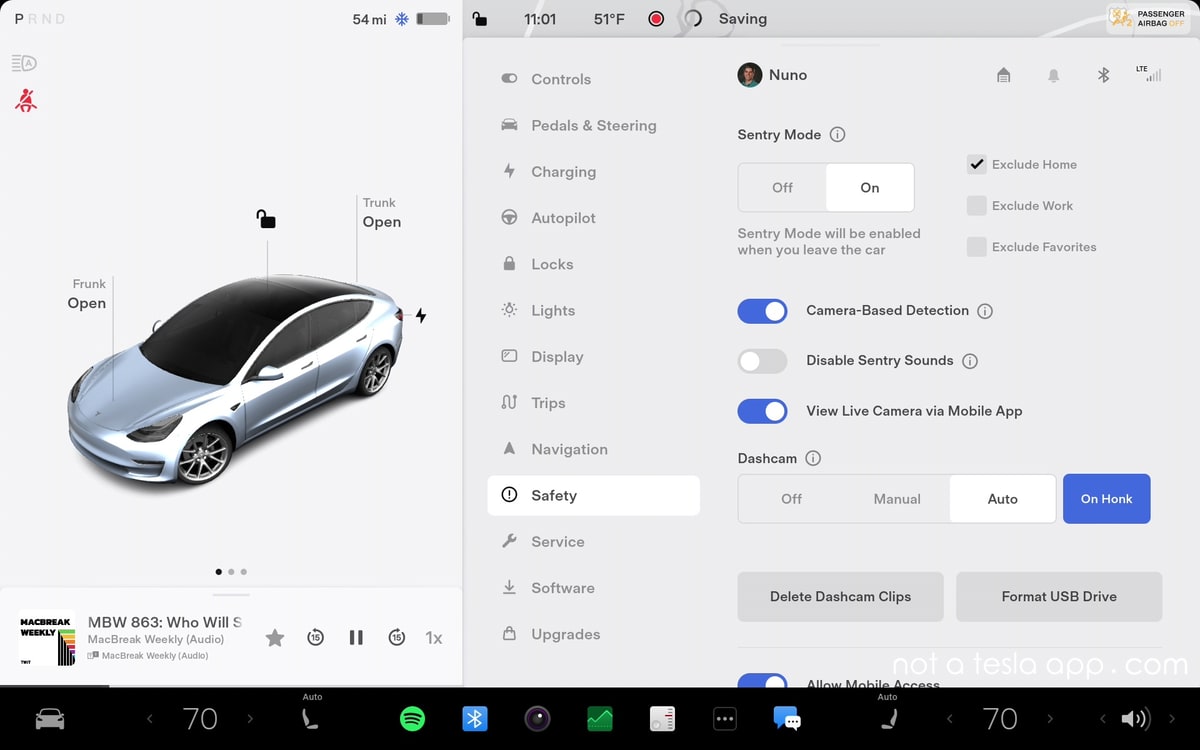
Start by tapping the car icon at the bottom of the screen. This opens the main control menu. Scroll or look for the “Safety & Security” option. Tap it to access Sentry Mode and other safety features.
Enabling Sentry Mode
Enabling Sentry Mode on your Tesla Model Y helps protect your car. It uses cameras to watch around the vehicle. This mode alerts you if someone tries to tamper with your car. Activating Sentry Mode is simple and can be done in two ways. You can turn it on manually or set it to activate automatically.
Turning On Sentry Mode Manually
To turn on Sentry Mode manually, start at the touchscreen inside your Tesla. Tap the car icon to open the controls menu. Find the Sentry Mode option and tap the switch to enable it. You will see a blue icon on the screen when Sentry Mode is active. This method is best when you park in places where you want extra security instantly.
Setting Sentry Mode To Activate Automatically
Automatic activation saves time and adds convenience. Open the Tesla app on your phone or use the car’s touchscreen. Go to the Safety & Security settings. Choose the option for automatic Sentry Mode activation. You can select specific locations or set it for all parking spots. The car then turns on Sentry Mode by itself in those areas. This keeps your Model Y safe without extra effort.
Read More: Fix Tesla Model Y Update Stuck
Customizing Sentry Mode Settings
Customizing Sentry Mode settings lets you control how your Tesla Model Y keeps watch. You can change alerts and control which cameras record. Personalizing these options helps you feel safer and use the feature better.
Adjusting Notifications
Notifications tell you about events around your car. You can choose to get alerts on your phone or on the car screen. Turn notifications on or off depending on your preference. This helps you stay informed without too many distractions.
Managing Camera Access
You decide which cameras record during Sentry Mode. Some cameras show more details than others. Allowing access to certain cameras can improve security. Restricting others can protect your privacy. Adjust these settings to match your comfort level.

Credit: teslahubs.com
Monitoring Sentry Mode Activity
Monitoring Sentry Mode activity is key to using this Tesla security feature effectively. It helps you keep an eye on your vehicle even when you are not nearby. Sentry Mode records events around your car and alerts you about possible threats. This section explains how to view these alerts and access recorded footage easily.
Viewing Alerts
Your Tesla sends alerts to the Tesla app on your phone. These alerts notify you about any suspicious activity near your car. You can check the alert details to understand what triggered Sentry Mode. The alert often includes a brief description of the event. Always review these alerts quickly to ensure your car’s safety.
Accessing Recorded Footage
Sentry Mode saves video clips to a USB drive connected to your Tesla. You can remove the USB drive and watch the footage on your computer. The videos show exactly what happened around your car during the alert. This footage helps you see any possible damage or theft attempts. Keep the USB drive formatted and ready for recording new events.
Troubleshooting Common Issues
Troubleshooting common issues with Tesla Model Y Sentry Mode helps keep your car safe. Problems may stop the feature from working correctly. Fixing these issues ensures Sentry Mode protects your vehicle as intended.
Sentry Mode Not Activating
Check if Sentry Mode is turned on in the car’s settings. Sometimes the feature is off by mistake. Make sure your car is parked and in “Park” gear. Sentry Mode does not work while driving. Verify that your Tesla software is updated. Outdated software can cause bugs. Restart the car’s system to reset any glitches. If the problem continues, contact Tesla support for help.
Storage And Memory Management
Sentry Mode saves video clips to a USB drive or SSD. Make sure the storage device is plugged in and formatted correctly. The drive must be formatted to FAT32 or exFAT for Tesla. Clear old footage regularly to free up space. Full storage stops new videos from saving. Use a USB with enough capacity, at least 32 GB. Check the drive for errors using a computer. Replace faulty drives to avoid data loss.
Best Practices For Using Sentry Mode
Sentry Mode is a useful feature for Tesla Model Y owners. It keeps your car safe by watching the surroundings. Using Sentry Mode wisely helps protect your car and saves battery power. Here are some tips for the best use of this feature.
Following these simple rules makes Sentry Mode work better and keeps your car ready to drive.
Ensuring Privacy
Sentry Mode records video when it senses threats. The camera may capture people or places nearby. Respect privacy by not recording in private areas. Avoid using Sentry Mode in places where video recording is not allowed. Share footage only with trusted people or authorities. Always check local laws about video recording in public.
Maximizing Battery Efficiency
Sentry Mode uses extra battery power while active. Turn off Sentry Mode if you park your car for a long time. Use Sentry Mode only in places with higher risk of theft or damage. Lower the screen brightness and close apps to save battery. Keep your Tesla charged to avoid running out of power.
Final Thoughts
Activating Tesla Model Y Sentry Mode helps protect your car. It watches for threats and records any activity. You only need a few simple steps to turn it on. Keep your car safe when parked, day or night. Remember to check your settings regularly for best results.
Stay alert and use Sentry Mode to feel more secure. Your Tesla can look after itself while you are away. Easy to use, it adds peace of mind every time.
FAQs About Activate Tesla Model Y Sentry Mode
How Do I Enable Sentry Mode On Tesla Model Y?
To enable Sentry Mode, tap the car icon on the touchscreen. Select ‘Safety & Security’ then activate ‘Sentry Mode’. You can also enable it via the Tesla app under ‘Security’. This protects your vehicle by monitoring suspicious activity around it.
Can Sentry Mode Record Video Automatically?
Yes, Sentry Mode uses built-in cameras to record video automatically. When triggered by threats, it saves footage to a USB drive. Ensure a properly formatted USB drive is plugged in for recording to work effectively.
Does Sentry Mode Drain Tesla Model Y Battery?
Sentry Mode uses extra battery power but minimally impacts overall charge. It draws energy to keep cameras and sensors active when parked. Regular use may slightly reduce battery life, so monitor your charge if using Sentry Mode extensively.
Is Sentry Mode Effective Against Theft Or Vandalism?
Sentry Mode deters theft and vandalism by alerting owners and recording incidents. It activates alarms and flashes lights upon detecting threats, potentially scaring off intruders. Recorded footage also helps in identifying suspects after an event.
Disclosure: As an Amazon Associate, I may earn from qualifying purchases at no extra cost to you. Amazon and the Amazon logo are trademarks of Amazon.com, Inc, or its affiliates.
- Amazon, Amazon Prime, the Amazon logo and Amazon Prime logo are trademarks of Amazon. com, Inc. or its affiliates.

I am Sadman, the founder of CarSensorHub.com, where I share my passion for cars and technology. I specialize in writing detailed reviews and helpful guides on car gadgets, accessories, safety tools and many more. My mission is to help car owners discover the best products and tips to improve their driving experience and stay safe on the road.