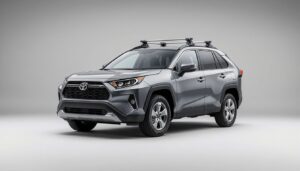
If you drive a Toyota RAV4 and want your smartphone to work seamlessly with your car, Apple CarPlay is a must-have feature. CarPlay lets you use your iPhone’s apps, navigation, music, and messages directly from your car’s touchscreen—making driving safer and more enjoyable.
But setting up CarPlay can feel confusing, especially if you’re not a tech expert or English is not your first language. This guide is designed to help you, step by step, with clear explanations and practical advice. Whether your RAV4 is new or a few years old, you’ll learn how to set up Apple CarPlay, customize it, and solve common problems, all with confidence.
What Is Apple Carplay And Why Use It?
Apple CarPlay is a system that connects your iPhone to your car’s infotainment screen. Once connected, you can see important apps on the dashboard and control them by touch or voice. This means you can get directions, call friends, send texts, or play your favorite music without needing to hold your phone.
For many Toyota RAV4 drivers, CarPlay is a game-changer for safety and convenience.
CarPlay works with iPhone 5 and newer models, but for the best experience, use an iPhone running iOS 13 or later. In the Toyota RAV4, CarPlay became a standard feature in models from 2019 onwards. If your RAV4 is from 2018 or earlier, you might need a software update or an aftermarket solution.
Checking Carplay Compatibility In Your Toyota Rav4
Before you start, you need to check if your RAV4 supports Apple CarPlay. Not all models have it, and knowing this saves a lot of time and frustration.
Which Rav4 Models Have Carplay?
- 2019 and newer: All trim levels come with CarPlay as a standard feature.
- 2018 models: Some 2018 RAV4s can get CarPlay through a dealer software update.
- 2017 and earlier: These models do not support CarPlay unless you install an aftermarket head unit.
How To Check Your Car
- Look at your infotainment system. If you see an “Apps” or “Projection” icon on the home screen, your system is likely compatible.
- Check your owner’s manual. CarPlay should be listed if your car supports it.
- Visit Toyota’s official website with your VIN number to confirm compatibility.
- Ask your dealer if you are unsure, especially for 2018 models.
Non-obvious tip: If you have a Japanese import or a model made for another country, CarPlay might not be available, even in newer RAV4s.
What You Need Before Setup
Before you connect your iPhone, make sure you have:
- A compatible iPhone (iPhone 5 or newer, iOS 13+ recommended)
- A high-quality USB cable (the original Apple cable is best)
- A compatible Toyota RAV4 (2019+ for plug-and-play)
Why the cable matters: Cheap or damaged cables often cause CarPlay to disconnect or not work at all. If you experience problems, try a different, genuine Apple cable.
Pro tip: Remove any phone cases with metal or battery packs, as these can cause connection issues.
Step-by-step Apple Carplay Setup Guide for Toyota Rav4
Now, let’s connect your iPhone to your Toyota RAV4. Follow these steps closely for a smooth setup.
1. Prepare Your Vehicle
- Turn on your RAV4 and keep it in Park.
- Make sure the infotainment system is powered on.
2. Connect Your Iphone
- Plug your iPhone into the USB port using your cable.
- In most RAV4s, the USB port is under the climate controls or in the center console.
- Wait a few seconds. Your infotainment screen should show a message asking if you want to enable Apple CarPlay.
3. Allow Carplay On Your Iphone
- Your iPhone will display a pop-up: “Allow CarPlay with Toyota?”
- Tap Allow.
- If you want CarPlay to connect automatically next time, check “Don’t ask again”.
4. Accept Terms On Your Rav4 Screen
- Read and accept any terms or safety prompts on your car’s display.
- CarPlay’s interface should now appear.
5. Using Carplay
- You’ll see familiar icons like Maps, Phone, Messages, and Music.
- Tap to open apps, or use the steering wheel voice button to activate Siri for hands-free control.
Common mistake: Some users forget to unlock their iPhone before connecting. If nothing happens, unlock your phone and try again.
Setting Up Wireless Apple Carplay
Some newer RAV4 models (mainly 2022 and later) support wireless CarPlay. This means you don’t need a cable—CarPlay connects via Bluetooth and Wi-Fi.
How To Set Up Wireless Carplay
- Start the car and turn on Bluetooth and Wi-Fi on your iPhone.
- On your RAV4’s screen, go to Menu > Setup > Bluetooth > Add Device.
- Select your car from the iPhone’s Bluetooth menu.
- Your iPhone will show a pairing code. Confirm the code matches on both your phone and the car display.
- Allow CarPlay when prompted.
Tip: Wireless CarPlay uses more battery. Keep a charger handy for long trips.
Insight: If your RAV4 does not support wireless CarPlay but you want it, third-party wireless adapters are available. These plug into the USB port and create a wireless connection, but performance can vary. Only buy from trusted brands with good reviews.
Customizing Your Carplay Experience
CarPlay is not just plug and play—you can adjust it to suit your driving style and needs.
Rearranging App Icons
- Open the Settings app on your iPhone.
- Tap General > CarPlay > Toyota RAV4.
- Tap Customize.
- Drag and drop apps to change their order, or remove apps you don’t use.
Enable Or Disable App Notifications
- Go to Settings > Notifications on your iPhone.
- Select the app (e.g., Messages, WhatsApp).
- Choose which notifications you want to see while driving.
Setting Your Preferred Navigation App
CarPlay supports Apple Maps, Google Maps, and Waze. To set your favorite:
- Open the app you want to use on CarPlay.
- Ask Siri for directions, e.g., “Hey Siri, take me to the airport using Google Maps.”
Tip: Some apps, like WhatsApp, need to be installed and set up on your iPhone before they appear on CarPlay.
Credit: carinterior.alibaba.com
Using Siri With Apple Carplay
Voice control is one of CarPlay’s best features. Siri helps you stay focused on the road.
How To Activate Siri
- Press and hold the voice command button on your steering wheel.
- Or say “Hey Siri” if you’ve enabled it on your iPhone.
What You Can Ask Siri
- “Call John Smith.”
- “Play jazz music.”
- “Send a message to Mom.”
- “Navigate to the nearest gas station.”
Non-obvious insight: You can ask Siri to read your recent messages aloud, which is safer than looking at your screen.
Popular Apps That Work With Carplay
Not every iPhone app is available on CarPlay. Here are some of the most useful:
- Navigation: Apple Maps, Google Maps, Waze
- Music/Audio: Apple Music, Spotify, Audible, Amazon Music, Podcasts
- Communication: Phone, Messages, WhatsApp
- Radio: IHeartRadio, TuneIn Radio
Note: Banking, video, or social media apps are not supported for safety reasons.
Troubleshooting Carplay Issues In Toyota Rav4
Sometimes, CarPlay doesn’t work as expected. Here’s how to solve common problems.
Carplay Not Connecting
- Try a different USB cable.
- Make sure your iPhone is unlocked when connecting.
- Restart your iPhone and the infotainment system.
- Check if your car’s infotainment software is up to date.
Carplay Disconnects While Driving
- Check for loose or faulty USB cables.
- Remove any metallic phone cases.
- Clean the USB port from dirt or debris.
Apps Not Showing Up
- Update your iPhone to the latest iOS.
- Make sure apps are installed and set up on your phone.
- Go to Settings > General > CarPlay > Toyota RAV4 and customize the app order.
Audio Issues
- Check your car’s volume and audio source settings.
- Make sure Bluetooth is not interfering if you use a wired connection.
- If using wireless CarPlay, check Wi-Fi signal strength.
Advanced tip: If you still have problems, try resetting the infotainment system to factory settings (see your owner’s manual for instructions).
Updating Carplay Software In Your Rav4
Keeping your system up to date helps avoid bugs and adds new features.
How To Update
- IPhone: Update to the latest iOS (Settings > General > Software Update).
- RAV4: Dealer updates are sometimes needed, especially for 2018-2020 models. Visit your Toyota dealer and ask about infotainment or firmware updates.
Tip: Some dealers charge for updates if your car is out of warranty. Ask for the cost before they start.

Credit: www.youtube.com
Apple Carplay Vs. Toyota’s Native Entune System
Many RAV4s come with Toyota Entune, the carmaker’s own infotainment system. Here’s a quick comparison:
| Feature | Apple CarPlay | Entune |
|---|---|---|
| Navigation | Apple Maps, Google Maps, Waze | Toyota’s built-in maps (less up-to-date) |
| Voice Control | Siri | Toyota Voice Recognition |
| Music & Podcasts | Apple Music, Spotify, more | Limited apps |
| Updates | Automatic with iPhone | Dealer update needed |
| App Support | Many third-party apps | Few third-party apps |
Insight: CarPlay is more flexible and always up to date, but Entune can work without a smartphone.
Upgrading Older Rav4s To Support Apple Carplay
If your RAV4 is from 2017 or earlier, you can still enjoy CarPlay by upgrading your infotainment system.
Options For Upgrading
- Dealer Software Update (2018 only): Some 2018 models can get CarPlay with a dealer update.
- Aftermarket Head Units: Brands like Pioneer, Kenwood, and Alpine offer CarPlay-compatible head units.
- Wireless Adapters: For cars with wired CarPlay, wireless adapters can add cable-free convenience.
What To Consider
- Cost: Aftermarket head units cost $300–$1,000, plus installation.
- Warranty: Dealer-installed upgrades keep your warranty. Third-party installations might not.
- Features: Aftermarket units can add more features (Android Auto, better sound) but may require dashboard modification.
Tip: Always check compatibility and get installation from a qualified shop.
Go Wireless Today!
Find the perfect adapter to make your RAV4 CarPlay setup 100% cable-free.
View Best Wireless Carplay Adapter for Toyota Rav4Safety And Privacy With Apple Carplay
CarPlay is built for safety, but you should still be careful.
- Use Siri to keep your hands on the wheel.
- Do not text or browse apps while driving.
- CarPlay does not store your data on the car’s system; everything runs from your iPhone.
Privacy insight: When you disconnect your phone, personal data like messages or contacts are not stored in the car.
Apple Carplay And Toyota Rav4: Key Benefits
Here are the top reasons RAV4 drivers love CarPlay:
- Easy navigation: Up-to-date maps and real-time traffic.
- Music on demand: Access playlists and podcasts easily.
- Safer calls and messages: Hands-free with Siri.
- Consistent updates: CarPlay adds new features with every iOS update.
- Simple interface: No need to learn a new system.
Credit: carinterior.alibaba.com
Comparing Wired Vs Wireless Carplay In Rav4
Which is better for you—wired or wireless CarPlay? Here’s a direct comparison:
| Feature | Wired CarPlay | Wireless CarPlay |
|---|---|---|
| Connection | USB cable | Bluetooth & Wi-Fi |
| Setup | Plug in and go | Pair once, auto-connect later |
| Charging | Charges phone while connected | Drains battery faster |
| Reliability | Very stable | May disconnect if signal weak |
| Availability | All 2019+ RAV4s | 2022+ RAV4s (some trims) |
Advice: If you often drive long distances, wired CarPlay is better for charging. If you hate cables, wireless CarPlay is more convenient—but bring a charger.
Real-life Example: Setting Up Carplay In A 2021 Toyota Rav4
Imagine you own a 2021 RAV4 XLE. Here’s what the setup looks like:
- You unlock your iPhone 11 and plug it into the USB port under the dashboard.
- Your infotainment screen shows “Apple CarPlay available—connect now?”
- You tap “Yes” on the screen and “Allow” on your phone.
- CarPlay launches, showing Apple Maps, Music, and Messages.
- You press the steering wheel voice button and say, “Call Mom.”
- Siri dials the number, all without you touching the phone.
Non-obvious insight: After the first setup, CarPlay will connect automatically every time you plug in your phone—no need to repeat the steps.
Essential Tips For A Smooth Carplay Experience
- Update your iPhone regularly.
- Keep your USB port clean—dust can cause poor connections.
- Use short, original cables for better reliability.
- Do not overload your phone with unused apps; this can slow down CarPlay.
Advanced tip: If you share your RAV4 with family, each driver can set up their own CarPlay preferences.
FAQs Of How to set up Apple Carplay on Toyota Rav4
How Do I Know If My Rav4 Has Apple Carplay?
Check your car’s infotainment system for an “Apps” or “Projection” icon, or look for CarPlay in the owner’s manual. All 2019 and newer RAV4s support CarPlay. For more details, visit the official Toyota website or ask your dealer.
Can I Install Carplay In An Older Toyota Rav4?
If you have a 2018 RAV4, some models can get CarPlay with a dealer update. For 2017 and older models, you need an aftermarket head unit that supports CarPlay.
Why Is Apple Carplay Not Working In My Rav4?
The most common reasons are a faulty USB cable, an outdated iPhone, or software issues. Try using a genuine Apple cable, updating your iPhone, and restarting both your phone and the car’s system.
Does Carplay Use Mobile Data?
Yes, CarPlay uses your iPhone’s data for navigation, streaming music, and sending messages. Make sure you have a good data plan, especially if you use maps or music services often.
Is Apple Carplay Safe To Use While Driving?
CarPlay is designed for safety, letting you use voice commands and large icons. However, you should always stay focused on the road and use CarPlay responsibly.
For more technical details and official compatibility, see Apple’s CarPlay page.
Setting up Apple CarPlay in your Toyota RAV4 is one of the easiest ways to make your daily drive smarter, safer, and more enjoyable. With the right cable, a little patience, and this guide, you’ll be ready to experience the full power of your iPhone from the driver’s seat.
Enjoy the road ahead!
Disclosure: As an Amazon Associate, I may earn from qualifying purchases at no extra cost to you. Amazon and the Amazon logo are trademarks of Amazon.com, Inc, or its affiliates.
- Amazon, Amazon Prime, the Amazon logo and Amazon Prime logo are trademarks of Amazon. com, Inc. or its affiliates.

I am Sadman, the founder of CarSensorHub.com, where I share my passion for cars and technology. I specialize in writing detailed reviews and helpful guides on car gadgets, accessories, safety tools and many more. My mission is to help car owners discover the best products and tips to improve their driving experience and stay safe on the road.