Is your Tesla Model Y screen acting up or freezing at the worst moments? You’re not alone, and luckily, there’s a quick fix.
Knowing how to reset your Tesla Model Y screen can save you time, frustration, and even an unexpected trip to the service center. In this guide, you’ll discover simple, step-by-step instructions to get your screen back to normal—fast. Keep reading, and take control of your Tesla’s touchscreen like a pro.
Reasons To Reset The Screen
The Tesla Model Y screen is a key part of your car’s system. It controls many features, like navigation, media, and car settings. Sometimes, the screen may stop working properly. Resetting the screen can fix many common problems quickly. Understanding why and when to reset helps keep your car running smoothly.
Common Screen Issues
The screen may freeze or become unresponsive. Buttons might not work or the display could flicker. Sometimes the screen goes black or shows errors. These issues interrupt your driving experience. They often happen because of software glitches or temporary bugs. A reset can clear these problems without much hassle.
When To Consider A Reset
Try resetting the screen if it stops responding. If the display freezes or lags, a reset helps. When apps crash or the system slows down, a reset can restore normal function. Use a reset before visiting a service center. It saves time and may fix the issue quickly. Regular resets can improve system performance too.
Credit: service.tesla.com
Types Of Screen Resets
Resetting the Tesla Model Y screen helps fix many common issues. It clears minor bugs and refreshes the system. There are two main types of resets: soft reset and hard reset. Each type serves a different purpose and works differently.
Soft Reset
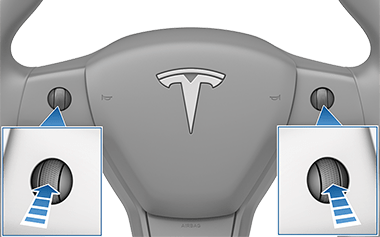
The soft reset is the easiest way to refresh the screen. It restarts the touchscreen without affecting your settings or data. This reset fixes small glitches like frozen apps or lagging response. To perform a soft reset, press and hold both scroll wheels on the steering wheel. Keep holding until the screen turns black, then release. The system will reboot in a few seconds.
Hard Reset
The hard reset is more thorough and resets the entire infotainment system. It can fix bigger problems like system crashes or unresponsive controls. This reset may take longer and could cause some temporary loss of settings. To do a hard reset, power off the car completely. Wait for about two minutes before turning it back on. This process forces the system to reload all software components fresh.
Read More: How to Fix Jeep Wrangler Jl Backup Camera Black Screen Problem
Step-by-step Soft Reset
Resetting the Tesla Model Y screen can fix small issues quickly. A soft reset restarts the screen without affecting your settings or data. Follow these simple steps to perform a soft reset safely. It helps clear glitches and improve screen response.
Preparing Your Vehicle
Make sure your car is in Park. Keep the screen on and the vehicle powered. Avoid touching other controls during the reset. Have patience and stay calm during the process.
Performing The Reset
Press and hold both scroll wheels on the steering wheel. Hold them for about 10 seconds. The screen will go black. Release the scroll wheels once the Tesla logo appears. Wait as the screen restarts fully.
What To Expect After Reset
The screen will reboot and show the Tesla logo. It may take up to one minute to load. Your settings remain unchanged. The screen should respond better after the reset. If problems continue, try the reset again or seek help.
Prevent Screen Scratches and Fingerprints!
CHECK BEST MATTE SCREEN PROTECTORS →*Highly recommended for Model Y touchscreens*
Step-by-step Hard Reset
The Tesla Model Y touchscreen controls many important features. Sometimes, it may freeze or stop responding. A hard reset can fix this issue quickly. This process restarts the screen without affecting your car’s settings. Follow these clear steps to perform a hard reset safely.
When To Use Hard Reset
Use a hard reset if the screen is frozen or not working. It helps when the display is slow or unresponsive. Avoid using it for minor glitches. Try a soft reset first by pressing the brake and holding both scroll wheels on the steering wheel.
If the soft reset does not work, then proceed with a hard reset. This method is safe and does not erase any personal data or settings.
Resetting Procedure
Start by putting your Model Y in park. Press and hold both scroll wheels on the steering wheel. Keep holding them for about 10 seconds until the screen turns black. Wait for the Tesla logo to appear. The screen will restart shortly after. Release the scroll wheels once you see the logo. Your touchscreen should now be working normally.
Post-reset Tips
Check if all functions on the screen respond correctly. Make sure navigation, media, and climate controls work. Restart your car if some features still lag. Keep software updated to avoid frequent resets. If problems continue, contact Tesla support for help.
Troubleshooting Screen Issues
Troubleshooting screen issues in a Tesla Model Y can be simple. The screen controls many functions, so it must work well. Sometimes, the screen may freeze or not respond. Resetting the screen often fixes this.
Yet, problems may still happen after a reset. Knowing common issues helps you act fast. It also saves time and effort during repairs.
Common Problems After Reset
Some screens may stay black or blank after a reset. This can happen if the reset did not complete properly. Another issue is slow response or lagging on the screen. The screen may also flicker or show glitches. Sometimes, touch input may not register correctly.
In rare cases, the screen may restart repeatedly. This indicates a deeper software or hardware problem. Knowing these issues helps in deciding the next steps.
Additional Solutions
Try a full car reboot by holding both scroll wheels on the steering wheel. This resets the entire system, not just the screen. Ensure the car is in park before rebooting. Check for software updates in the settings menu after rebooting. Updates often fix bugs causing screen issues.
If problems continue, check the vehicle’s manual for specific guidance. A factory reset may help but backup your data first. Visit a Tesla service center if none of these steps work. Professionals can diagnose and fix complex screen problems safely.
Preventive Tips For Screen Performance
Keeping the Tesla Model Y screen in good shape helps avoid many common problems. Small steps can keep the screen running smooth and clear. These tips save time and prevent the need for frequent resets. Follow simple habits to maintain the screen’s health and enjoy better performance.
Regular Software Updates
Software updates fix bugs and improve screen functions. Tesla sends updates often to enhance your car’s system. Check for updates regularly through the settings menu. Install updates as soon as they become available. Updated software helps the screen stay fast and responsive. Skipping updates may cause slowdowns or glitches.
Safe Usage Practices
Avoid touching the screen with sharp or dirty objects. Use clean hands or a soft cloth to tap and swipe. Do not press too hard on the glass surface. Protect the screen from direct sunlight for long periods. Excess heat can affect screen brightness and touch sensitivity. Keep liquids away to prevent accidental spills on the display. Following these habits helps keep the screen clear and working well.

Credit: www.reddit.com
Conclusion
Resetting your Tesla Model Y screen is quick and simple. It helps fix most screen problems fast. Just follow the steps carefully to avoid mistakes. This keeps your screen working well every time. Regular resets can improve your driving experience.
Don’t worry about complex tools or extra help. You can do this yourself with ease. Keep this guide handy for any future issues. Your Tesla screen will stay smooth and responsive. A small reset can make a big difference. Stay confident and enjoy your drive.
FAQs Of How to Reset Tesla Model Y Screen
How Do I Reset The Tesla Model Y Touchscreen?
Press and hold both scroll wheels on the steering wheel until the screen goes black. Release the buttons and wait for the screen to restart. This soft reset fixes minor screen issues.
What Does A Tesla Model Y Screen Reset Fix?
It can solve unresponsive touch, frozen apps, or slow screen problems. The reset refreshes the system without affecting your car settings or data.
Can I Reset Tesla Model Y Screen Without Losing Data?
Yes, a soft reset only restarts the screen system. Your saved settings, navigation, and accounts stay intact after the reset.
How Long Does A Tesla Model Y Screen Reset Take?
The reset usually takes about 1 to 2 minutes. The screen will turn black, then show the Tesla logo before returning to normal.
When Should I Perform A Tesla Model Y Screen Reset?
Try a reset if the screen freezes, lags, or stops responding. It’s a quick way to fix glitches before seeking professional help.
Is It Safe To Reset Tesla Model Y Screen While Driving?
No, avoid resetting the screen while driving to stay focused on the road. Perform the reset only when the vehicle is parked safely.
Disclosure: As an Amazon Associate, I may earn from qualifying purchases at no extra cost to you. Amazon and the Amazon logo are trademarks of Amazon.com, Inc, or its affiliates.
- Amazon, Amazon Prime, the Amazon logo and Amazon Prime logo are trademarks of Amazon. com, Inc. or its affiliates.

I am Sadman, the founder of CarSensorHub.com, where I share my passion for cars and technology. I specialize in writing detailed reviews and helpful guides on car gadgets, accessories, safety tools and many more. My mission is to help car owners discover the best products and tips to improve their driving experience and stay safe on the road.