The GMC Sierra 1500 is well-known for its power, comfort, and advanced technology. One feature that stands out is the Heads-Up Display (HUD). This tool helps drivers keep their eyes on the road while seeing important information right on the windshield. Many drivers do not use the HUD to its full potential because they do not know how to set it up or adjust it. This guide will help you get the most from your Sierra 1500’s Heads-Up Display, with practical tips, step-by-step instructions, and insights you may not find in the manual.
What Is The Heads-up Display?
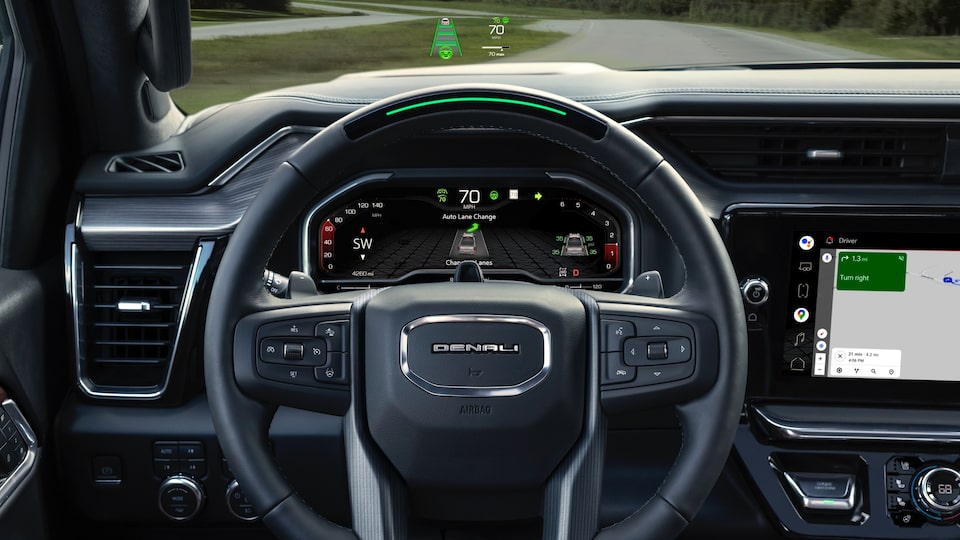
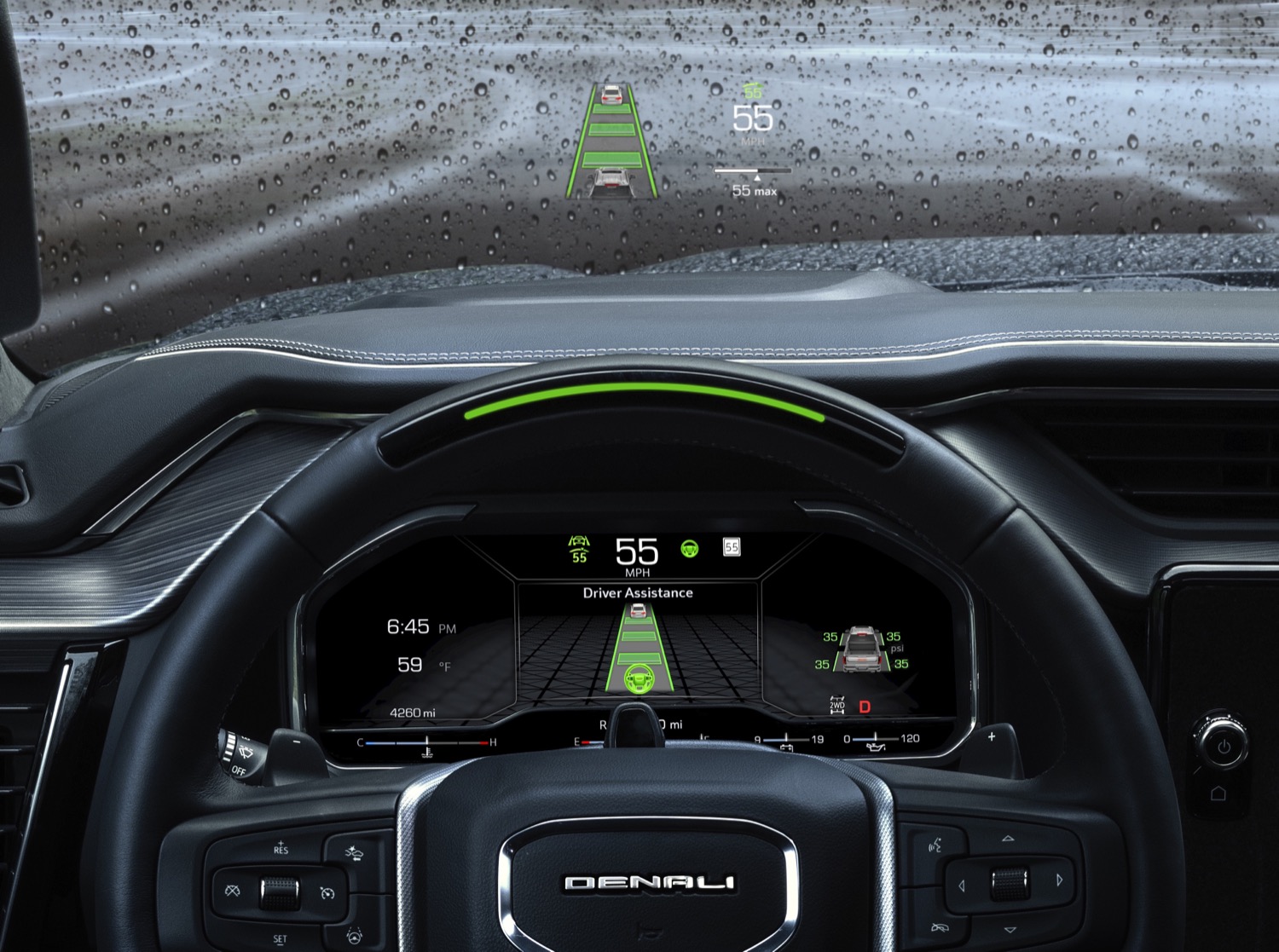
The Heads-Up Display in the GMC Sierra 1500 projects key information onto a small area of the windshield, directly in your line of sight. This means you can check your speed, navigation, safety alerts, and more without looking down at the dashboard. The system uses a small projector and a special reflective spot on the windshield.
Key Benefits
- Safety: Reduces the need to look away from the road.
- Convenience: Quick access to navigation directions, speed, and warnings.
- Customization: Choose what you want to see and where.
Basic Operation Of The Gmc Sierra 1500 Hud
Getting started with the HUD is simple, but there are a few things you should know.
1. Turning The Hud On/off
The HUD automatically turns on when you start the Sierra 1500 if it is enabled in your settings. If you want to turn it off, look for the dedicated HUD button on the left side of the dashboard, close to the steering wheel.
Pressing this button toggles the display on and off.
2. Adjusting Brightness
The brightness can be changed using the “HUD Brightness” button, usually near the HUD controls. Adjust it so you can see the display clearly both during the day and at night.
3. Adjusting Position
Use the “HUD Position” button to move the display up or down. This is important so that the information lines up with your eyes. If you share your truck with other drivers, each person should adjust the position for their height.
4. Selecting Information
The “HUD Info” button cycles through different display options. You can show or hide items like speed, navigation, or tachometer, depending on what you want to see.
Credit: www.gmccanada.ca
Main Features Displayed On The Hud
The Sierra 1500’s HUD is customizable. Here are the main features you can choose:
- Speedometer: Shows your current speed.
- Navigation: Turn-by-turn directions from your GPS.
- Tachometer: Displays engine RPM.
- Safety Alerts: Warnings for lane departure, forward collision, etc.
- Audio Information: Current radio station or media track.
Some models or trims offer more options, so check your owner’s manual for the full list.
Customizing The Hud To Suit Your Needs
How To Choose What You See
To customize the HUD:
- Press the HUD Info button to cycle through display options.
- Stop when you see the combination of data you prefer.
- Some Sierra 1500 trims allow you to turn off specific features in the settings menu.
Adjusting For Different Lighting Conditions
The HUD can be hard to see in bright sunlight or may be too bright at night. Use the brightness adjustment to match the conditions. Some drivers find that wearing polarized sunglasses can make the HUD disappear, so test with your glasses before you drive.
Positioning For Multiple Drivers
If multiple people use your truck, each person should adjust the HUD position. A low display may be missed, while a high one can distract. Set it so the information sits just below your main view of the road.
Read More: Common GMC Sierra 1500 Problems And Fixes
Common Hud Settings And What They Mean
Each setting on the HUD has a specific use. Here’s a quick reference:
| HUD Setting | What It Shows | When to Use |
|---|---|---|
| Speedometer | Current speed | All driving |
| Navigation | Turn-by-turn directions | Using GPS |
| Tachometer | Engine RPM | Towing or manual mode |
| Safety Alerts | Collision, lane warnings | All driving, especially city/highway |
| Audio Info | Radio/media track | Changing music while driving |
Step-by-step Guide: Setting Up Your Hud
Follow these steps to set up your HUD quickly:
- Start the truck and sit in your normal driving position.
- Turn on the HUD with the dedicated button.
- Adjust the brightness for current light conditions.
- Move the display up or down until it sits just below your main view of the road.
- Press the Info button to select what you want to see.
- Test drive for a few minutes. Adjust as needed until you are comfortable.
Credit: gmauthority.com
Advanced Tips For Experienced Users
Most drivers use only the basic features. Here are two advanced tips:
- Combine Data for Towing: If you tow trailers, set the HUD to show both the tachometer and safety alerts. This helps you monitor engine stress and stay aware of blind spots.
- Set for Long Trips: On long journeys, use the navigation and audio display. This minimizes distractions from reaching for your phone or infotainment screen.
Comparing Hud Usefulness: Gmc Sierra 1500 Vs. Other Trucks
How does the Sierra’s HUD compare to others in its class? Here’s a quick look:
| Feature | GMC Sierra 1500 | Ford F-150 | Ram 1500 |
|---|---|---|---|
| Display Size | 15 inches | 8 inches | 12 inches |
| Customizable Data | Yes | Limited | Yes |
| Navigation Support | Yes | No | Yes |
| Safety Alerts | Yes | Yes | Yes |
The GMC Sierra 1500 offers a larger and more customizable HUD than many competitors, especially for navigation and towing data.

Credit: www.hustongmc.com
Solving Common Problems With The Hud
Sometimes the Heads-Up Display may not work as expected. Here are solutions to common issues:
- HUD is not visible:
Check that the system is turned on. Adjust brightness and position. Make sure you are seated correctly.
- Display is blurry:
The windshield may be dirty or foggy. Clean the area where the HUD projects. Avoid glass treatments that create haze.
- HUD disappears with sunglasses:
Polarized lenses can block the HUD. Try non-polarized sunglasses or adjust the angle of the display.
- Information is missing:
Go through the Info button cycle. Some features may only show when active (for example, navigation when a route is set).
Safety And Distraction Concerns
The HUD is designed to reduce distraction, but it can still pull your attention from the road if overloaded with data. Limit what you display. Only show the information you truly need. Remember, less is often safer.
Real-world Example
A driver named Mark used to check his speed by glancing down at the gauge, especially in work zones. After setting up the HUD, he found he could keep his eyes on the road more often and react faster to sudden changes.
This small change improved both his safety and comfort, especially during long trips.
Hud Maintenance And Care
The HUD is a projection system, so keeping the windshield clean is critical. Use only non-abrasive cleaners and avoid wax or treatment products in the HUD area. If the image seems faded or has spots, clean both the inside and outside surfaces.
Updating And Troubleshooting The System
Software updates for the Sierra 1500 sometimes improve the HUD. Visit your dealer for the latest firmware. If the HUD stops working after a battery change or service, check settings in the infotainment system or consult your owner’s manual.
How The Hud Improves The Driving Experience
Studies show that HUD systems can reduce average glance time away from the road by up to 0.5 seconds per check. Over a long trip, this means more focus and faster reaction to hazards. Drivers also report less stress and fatigue because they do not need to shift their gaze as often.
Cost And Availability
The Heads-Up Display is standard on higher trims of the Sierra 1500, such as the Denali, and optional on some others. If your truck does not have a HUD, adding one as a factory option may cost around $1,000–$1,500. Aftermarket solutions exist but may not offer the same integration or reliability.
Comparison: Hud Vs. Traditional Gauges
Here’s a comparison of HUD and traditional gauge clusters:
| Feature | HUD | Traditional Gauges |
|---|---|---|
| Eye Movement | Minimal | Frequent |
| Customization | High | Limited |
| Data at a Glance | Yes | Partial |
| Distraction Risk | Low (if used well) | Medium |
Additional Insights Most Drivers Miss
Many Sierra 1500 owners do not realize that the HUD can be adjusted for language and units (miles/km, °F/°C) in the main settings menu. Also, if you use Apple CarPlay or Android Auto for navigation, some versions of the HUD can show directions from these apps, not just the built-in GPS.
Practical Tips
- Set up your HUD before you drive, not while moving.
- Update your system software at the dealership to get new features.
- Limit the number of items shown to what you need for each drive.
- Do not use glass tints or heavy sunshades where the HUD projects.
For more official technical details, you can check the GMC official site.
FAQs How to Use GMC Sierra 1500 Heads Up Display
How Do I Turn The Heads-up Display On And Off?
Press the HUD power button on the left side of the dashboard. If the display does not appear, check your vehicle settings or consult your manual.
Can I Adjust The Color Or Size Of The Hud?
You can adjust the brightness and position, but color and size are fixed. Some information appears larger or highlighted during alerts.
Will Polarized Sunglasses Block The Hud?
Yes, some polarized sunglasses make the HUD hard to see or invisible. Test your glasses before driving or use non-polarized lenses.
Can I Add A Hud To A Sierra 1500 That Did Not Come With One?
Factory installation is best. Aftermarket HUDs exist, but integration and quality may not match GMC’s system.
Does The Hud Work With All Navigation Apps?
The HUD works best with the built-in GMC navigation. Some CarPlay or Android Auto directions may appear, but features depend on your Sierra 1500’s model year and software version.
The GMC Sierra 1500 Heads-Up Display is more than a luxury—it’s a tool that can make your driving safer and easier. With the right setup and care, you can enjoy the benefits every time you get behind the wheel.
Disclosure: As an Amazon Associate, I may earn from qualifying purchases at no extra cost to you. Amazon and the Amazon logo are trademarks of Amazon.com, Inc, or its affiliates.
- Amazon, Amazon Prime, the Amazon logo and Amazon Prime logo are trademarks of Amazon. com, Inc. or its affiliates.

I am Sadman, the founder of CarSensorHub.com, where I share my passion for cars and technology. I specialize in writing detailed reviews and helpful guides on car gadgets, accessories, safety tools and many more. My mission is to help car owners discover the best products and tips to improve their driving experience and stay safe on the road.