Want to use Apple CarPlay on your Tesla Model Y dashboard? You’re not alone.
Many Tesla owners wish they could enjoy the seamless iPhone experience right on their car’s big screen. Imagine having all your favorite apps, maps, and music easily accessible while driving—without switching devices or losing focus. In this guide, you’ll discover simple, effective ways to get Apple CarPlay working on your Model Y.
Keep reading to unlock a smoother, smarter drive every time you hit the road.

Credit: www.tesery.com
Apple Carplay And Tesla Model Y Compatibility
Apple CarPlay is popular for many drivers. It offers easy access to apps, calls, and music from your iPhone. Tesla Model Y is a top electric vehicle with a unique dashboard screen. Many want to know if Apple CarPlay works on the Tesla Model Y. This section explains the compatibility between Apple CarPlay and Tesla Model Y.
Tesla’s Native Infotainment System
Tesla uses its own infotainment system. It is built to work smoothly with Tesla’s hardware. The system offers navigation, music, phone, and other features. It supports apps like Spotify, TuneIn, and Tesla Theater. The screen is large and easy to use while driving. Tesla’s system updates automatically over the air. This keeps the system fresh and adds new features.
Limitations Of Apple Carplay Integration
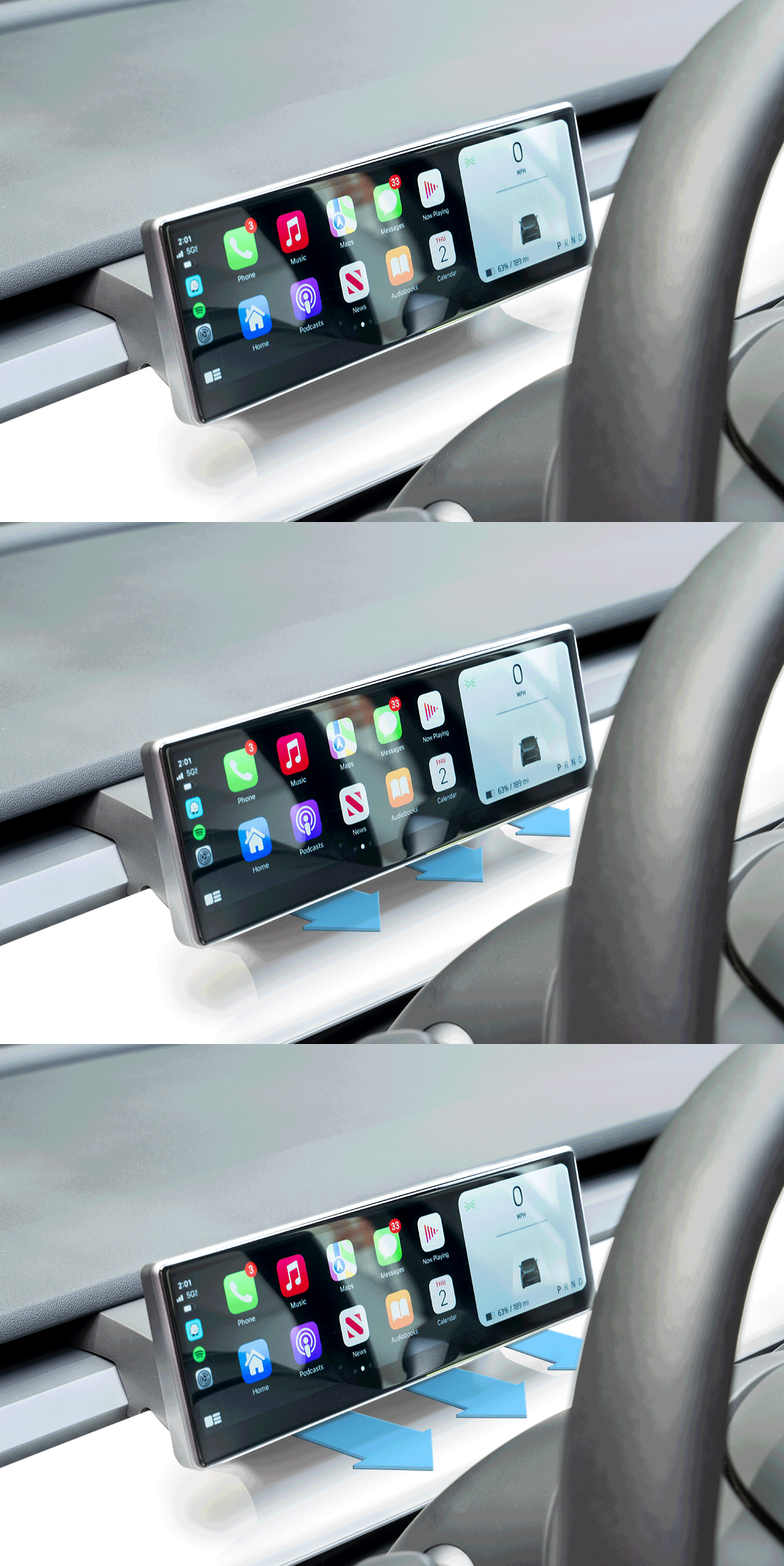
Tesla does not officially support Apple CarPlay. The native system and CarPlay are not compatible. The Tesla screen cannot mirror iPhone apps via CarPlay. This limits access to many familiar iPhone apps. Drivers cannot use Siri through the Tesla screen. No official method exists to add CarPlay inside Tesla’s interface. Some third-party solutions require extra devices or complex setups.
Credit: tsportline.com
Methods To Access Apple Carplay On Tesla Model Y
Many Tesla Model Y owners want Apple CarPlay on their dashboard screen. Tesla does not support Apple CarPlay natively. Still, several methods allow you to access CarPlay features.
These methods vary in complexity and cost. Some require extra devices, while others use your smartphone. Choose the best option based on your needs and budget.
Using Third-party Devices
Third-party devices can add Apple CarPlay to your Tesla. These gadgets connect to your car’s USB or HDMI input. They stream CarPlay content directly to the Tesla screen. Setup is usually simple and fast. The devices often come with their own apps. Expect a small delay in response time. This method offers a stable and clear display of CarPlay.
Screen Mirroring Via Smartphone
Screen mirroring lets you show your phone’s screen on Tesla. Use apps that mirror iPhone display wirelessly or via cable. This option does not require extra hardware. It can show all apps from your phone. The image quality depends on your phone and connection. Screen mirroring may use more battery power. It is a flexible and cost-effective solution.
Wireless Carplay Adapters
Wireless CarPlay adapters connect your iPhone to Tesla without cables. These adapters plug into Tesla’s USB port. They create a wireless link for CarPlay features. This method frees you from tangled cables. The connection is usually stable and fast. Setup involves pairing your phone with the adapter. Wireless adapters offer a clean and modern experience.
Read More: Essential Tesla Model Y Accessories
Step-by-step Setup Guide
Getting Apple CarPlay on your Tesla Model Y is possible with a few extra steps. This guide walks you through the setup. Follow each step carefully to enjoy CarPlay on your Tesla screen.
Connecting Your Iphone
Start by unlocking your iPhone. Use a USB cable to connect it to the Tesla’s USB port. The car should recognize the device automatically. Wait for the pop-up asking to trust the car. Tap “Trust” on your iPhone. This step allows the Tesla to access your phone’s data safely.
Configuring The Third-party Interface
Apple CarPlay is not built into Tesla’s system. You need a third-party app or device. Install the recommended app on your iPhone. Follow the app’s instructions to link it with your Tesla’s screen. Ensure both devices are on the same Wi-Fi network. This connection helps the interface run smoothly.
Optimizing Display Settings
Adjust the Tesla screen settings for the best view. Lower the screen brightness if it feels too bright. Set the display resolution to match CarPlay’s output. Enable full-screen mode in the app for a better experience. These tweaks improve clarity and ease of use.
Popular Third-party Carplay Solutions
Many Tesla Model Y owners want Apple CarPlay on their dashboard screen. Tesla does not support CarPlay natively. This leads to using third-party devices. These devices connect CarPlay to Tesla’s screen. They provide a similar experience to the original system. Popular third-party solutions vary in features and price. Choosing the right one depends on your needs and budget.
Overview Of Compatible Devices
Several devices work well for CarPlay on Tesla Model Y. One popular choice is the Carlinkit Wireless CarPlay Adapter. It connects via USB and offers wireless CarPlay. Another device is the JoyeAuto CarPlay Box. It supports both wired and wireless connections. The Ottocast U2-X is also common. It delivers stable wireless CarPlay with easy setup. These devices plug into the Tesla’s USB port. They mirror your iPhone screen on the dashboard. Compatibility with iPhones is broad, supporting recent iOS versions.
Pros And Cons Of Each Option
Carlinkit Adapter offers fast connection and wireless use. It is easy to install but can be pricey. Some users report occasional disconnects. JoyeAuto Box supports multiple connection types. It is versatile and user-friendly. Battery drain on the phone can be a drawback. Ottocast U2-X has stable signal and quick startup. It works well with Tesla’s screen. Some users find the interface less intuitive. All devices require a separate power source or USB port.
Troubleshooting Common Issues
Troubleshooting common issues with Apple CarPlay on the Tesla Model Y screen helps keep your drive smooth. This guide covers simple fixes for common problems. Follow clear steps to solve connection, audio, and software troubles quickly.
Connection Problems
CarPlay may not connect due to loose cables or Bluetooth issues. Check the USB cable for damage or poor connection. Use a certified Apple cable for best results. Restart your iPhone and Tesla’s screen to refresh connections. Turn off Bluetooth and Wi-Fi on your phone, then turn them back on. Reset network settings on your iPhone if needed. Ensure CarPlay is allowed in your iPhone’s settings.
Audio And Display Glitches
Audio may cut out or screen visuals might freeze during use. Lower the iPhone volume and adjust Tesla’s audio settings. Disconnect and reconnect CarPlay to reset the audio. Close background apps on your phone to improve performance. Check for dirt or dust on the Tesla screen and clean it gently. Restart both devices to clear temporary glitches that affect display or sound.
Software Update Conflicts
Software versions may cause CarPlay to stop working properly. Keep your Tesla’s software up to date with the latest release. Update your iPhone’s iOS to the newest version. Avoid using beta software, which can cause instability. If problems start after an update, try restarting both devices. Sometimes, waiting for the next update can fix unexpected bugs.
Read More: Best Tesla Model Y Screen Protector
Safety And Legal Considerations
Adding Apple CarPlay to a Tesla Model Y dashboard sounds useful. Yet, safety and legal rules matter most. Drivers must keep focus on the road. Distractions can cause accidents. Also, modifying a vehicle may affect its warranty and legal status.
Driving While Using Carplay
Using CarPlay while driving can be risky. It may distract your eyes and hands. Keep your attention on driving, not the screen. Use voice commands to reduce distraction. Never type or watch videos on the screen while moving. Safety must be the top priority.
Warranty And Vehicle Modifications
Installing CarPlay requires changes to your Tesla’s system. These changes might void your warranty. Tesla may refuse service if the car is altered. Check the warranty terms before making changes. Understand legal rules about vehicle modifications in your area. Stay informed to avoid problems later.

Credit: www.youtube.com
Final Thoughts
Getting Apple CarPlay on your Tesla Model Y screen is possible with the right steps. It helps you use your iPhone apps safely while driving. The process may need some tools or apps, but it is worth it for better convenience.
Keep your software updated and follow trusted guides carefully. Enjoy a smoother drive with familiar apps on your dashboard. Stay safe and connected every time you hit the road.
FAQs Of How to Get Apple Carplay on Tesla Model Y Dashboard Screen
Can Tesla Model Y Natively Support Apple Carplay?
How To Mirror Apple Carplay On Tesla Model Y Screen?
Is It Safe To Use Apple Carplay On Tesla Model Y?
What Are Alternatives To Apple Carplay In Tesla Model Y?
Disclosure: As an Amazon Associate, I may earn from qualifying purchases at no extra cost to you. Amazon and the Amazon logo are trademarks of Amazon.com, Inc, or its affiliates.
- Amazon, Amazon Prime, the Amazon logo and Amazon Prime logo are trademarks of Amazon. com, Inc. or its affiliates.

I am Sadman, the founder of CarSensorHub.com, where I share my passion for cars and technology. I specialize in writing detailed reviews and helpful guides on car gadgets, accessories, safety tools and many more. My mission is to help car owners discover the best products and tips to improve their driving experience and stay safe on the road.