Setting up FordPass Connect for your Ford Maverick is easier than you might think—and it can change the way you drive. Imagine being able to lock, unlock, and start your truck right from your phone.
Or checking your fuel level and vehicle health without stepping outside. This guide will walk you through every step, so you get the most out of your Maverick’s smart features. Ready to take control and make your driving experience smoother?
Let’s dive in and set up FordPass Connect together.

Credit: www.motortrend.com
Fordpass Connect Basics
FordPass Connect is a system that links your Ford Maverick to your phone. It lets you control many car features remotely. You can start or stop the engine, lock or unlock doors, and check fuel levels from anywhere.
The system also offers real-time vehicle location. This helps if you forget where you parked. It can send alerts for maintenance or if the car needs attention.
Using FordPass Connect, owners can schedule remote starts to warm or cool the vehicle before driving. This adds comfort and convenience.
It also provides Wi-Fi hotspot for internet access inside the vehicle. Passengers can stay connected during trips.
| Benefits | Details |
|---|---|
| Remote Access | Start engine, lock/unlock doors |
| Vehicle Tracking | Locate your Maverick easily |
| Maintenance Alerts | Get notified about car health |
| Wi-Fi Hotspot | Internet for passengers |

Credit: www.lutherauto.com
Preparing Your Vehicle
First, confirm your Ford Maverick supports FordPass Connect. Most models from 2022 and later are compatible. Check your vehicle’s manual or Ford’s official website for details.
Next, update your vehicle’s software. Updated software helps FordPass Connect work smoothly. Visit a Ford dealer or use your vehicle’s settings to check for updates. This ensures all features function properly.
Read More: Does the Ford Maverick Support Wireless Apple CarPlay
Downloading The Fordpass App
The FordPass app is available on both the Apple App Store and Google Play Store. Use your phone to search for “FordPass” and download it for free. The app works with most smartphones running recent operating systems.
Check your phone meets these basic requirements:
- iOS: Version 12.0 or higher
- Android: Version 6.0 or higher
- Stable internet connection
- Bluetooth enabled for some features
Once installed, open the app and follow the instructions. Signing up with an email and creating a password is needed. The app guides you through linking your Ford Maverick to FordPass Connect.
Creating Your Fordpass Account
Start by visiting the FordPass website or download the FordPass app. Click on Sign Up to create a new account. Enter your email address, create a strong password, and fill in your personal details.
Check your email for a verification link. Click the link to confirm your account. This step helps keep your account safe and secure.
After verification, log in to your FordPass account. You can now link your Ford Maverick to the app. This allows you to use all FordPass Connect features.
Connecting Fordpass To Your Maverick
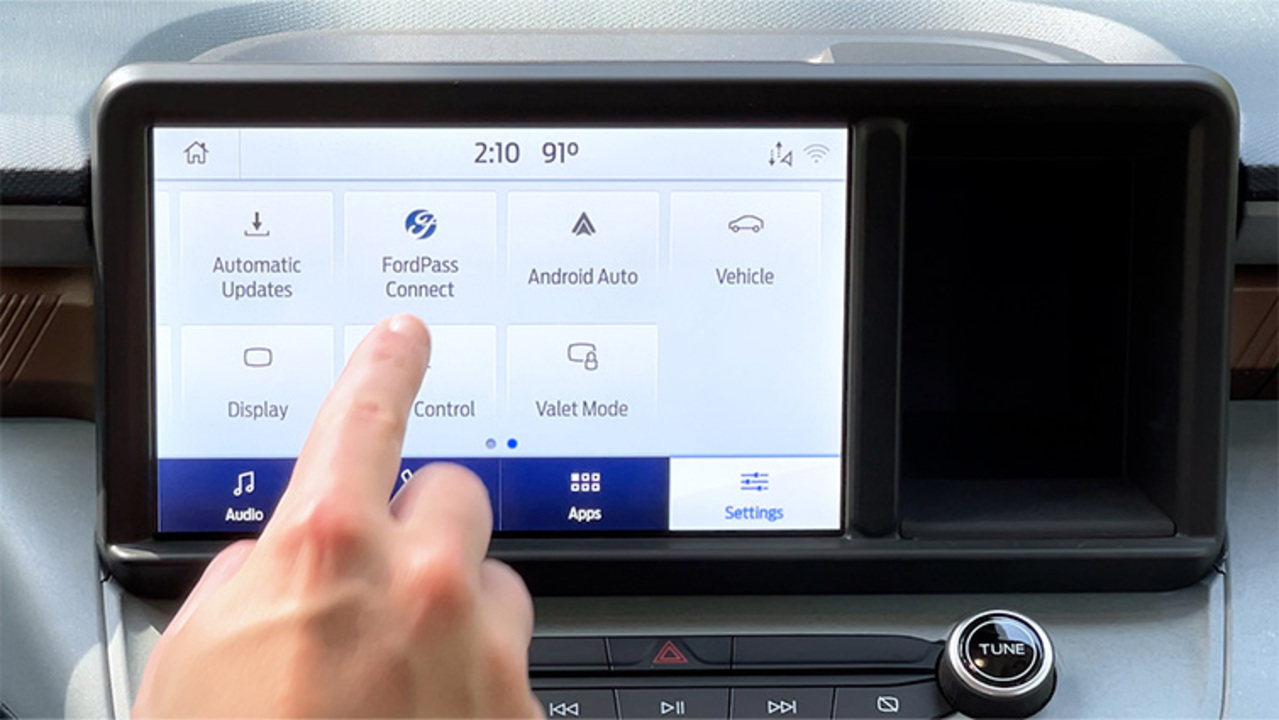
Start by downloading the FordPass app on your phone. Create an account or log in. Turn on your Ford Maverick and enable Bluetooth. Open the app and select “Add a Vehicle.” Enter your vehicle’s VIN number. The app will guide you through pairing your phone and truck. Confirm the connection on your vehicle’s screen.
Troubleshooting Connection Issues: Make sure Bluetooth is active on your phone. Restart the app and your vehicle if pairing fails. Check for app updates to avoid bugs. Keep your phone close to the truck during setup. Sometimes, deleting the vehicle from the app and re-adding fixes problems.
Credit: www.ford.com
Using Key Features
Remote Start and Lock lets you start the engine and lock or unlock doors from far away. This helps on hot or cold days to cool or warm the car before you get in. Use the FordPass app on your phone to control these features easily.
Vehicle Health Alerts send messages about your Maverick’s condition. Alerts tell you about low tire pressure, engine problems, or maintenance needs. These help keep your truck safe and running well.
Location Tracking shows where your Maverick is on a map. This is useful if you forget where you parked or want to check on your vehicle’s location. The app updates the position in real time for quick info.
Managing Settings And Preferences
Notification controls help you choose what alerts to get from FordPass Connect. You can turn on or off alerts for things like maintenance, fuel level, or vehicle location. This keeps you informed without too many messages.
Privacy settings let you control how your data is used. You can decide what information FordPass Connect can access. This helps protect your personal details and keeps your vehicle data safe.
Both settings are easy to find in the app’s menu. Just tap on “Settings” and choose “Notifications” or “Privacy.” Adjust options to fit your needs and comfort level.
Tips For Optimal Use
Regular app updates keep FordPass Connect working well. Updates fix bugs and add new features. Check the app store often to download the latest version. This helps avoid connection problems and keeps the app secure.
Maintaining connectivity requires a strong phone signal and good Bluetooth link. Park where the phone can get a clear signal. Turn on Bluetooth before opening the app. This lets the app talk to your Ford Maverick smoothly.
Keep your phone’s software updated too. Old phone software can cause the app to freeze or stop working. Restart your phone and car if the connection drops. Small steps like these improve your experience.
Frequently Asked Questions
What Is Fordpass Connect For Ford Maverick?
FordPass Connect is a built-in modem that links your Ford Maverick to the FordPass app. It offers remote vehicle control, Wi-Fi hotspot, and vehicle health alerts. This feature enhances convenience and connectivity for drivers on the go.
How Do I Activate Fordpass Connect In My Maverick?
To activate, download the FordPass app and create an account. Enter your vehicle’s VIN and follow on-screen setup instructions. Ensure your Maverick’s ignition is on during activation to complete the process smoothly.
Can I Control My Ford Maverick Remotely?
Yes, with FordPass Connect, you can remotely lock/unlock doors, start the engine, and check fuel levels. These features improve vehicle management and security from anywhere via your smartphone.
Is Fordpass Connect Free To Use?
FordPass Connect offers a complimentary trial period, usually one year. Afterward, subscription fees may apply for continued access to remote services and Wi-Fi hotspot features. Check Ford’s official site for current pricing details.
Conclusion
Setting up FordPass Connect for your Ford Maverick is simple and quick. Follow the steps carefully to ensure proper connection. This feature helps you control your truck with ease. Enjoy remote start, vehicle status, and more from your phone. Stay connected to your Maverick anytime, anywhere.
Take your time to explore all the app’s functions. This setup improves your driving experience every day. Keep your vehicle information handy and secure. Drive smart, stay informed, and enjoy your Ford Maverick fully.
Disclosure: As an Amazon Associate, I may earn from qualifying purchases at no extra cost to you. Amazon and the Amazon logo are trademarks of Amazon.com, Inc, or its affiliates.
- Amazon, Amazon Prime, the Amazon logo and Amazon Prime logo are trademarks of Amazon. com, Inc. or its affiliates.

I am Sadman, the founder of CarSensorHub.com, where I share my passion for cars and technology. I specialize in writing detailed reviews and helpful guides on car gadgets, accessories, safety tools and many more. My mission is to help car owners discover the best products and tips to improve their driving experience and stay safe on the road.