Is your Tesla Model 3 touchscreen acting up or frozen? You’re not alone, and the good news is that you don’t need to panic or visit a service center right away.
Knowing how to reset your Tesla Model 3 touchscreen can save you time, frustration, and get you back on the road quickly. You’ll discover simple, step-by-step methods to reset your screen safely and effectively. Keep reading to learn how to fix this common issue with ease and confidence.
Reasons To Reset Model 3 Touchscreen
Resetting the Tesla Model 3 touchscreen can solve many issues. The screen controls many car functions. Problems may disrupt your driving experience. Knowing why to reset helps you fix issues quickly. It also prevents unnecessary visits to the service center.
Below are common reasons to reset the touchscreen. Understanding these helps decide when a reset is needed. Resetting can improve screen response and overall car performance.
Common Screen Issues
The touchscreen may freeze or become unresponsive. Sometimes the screen flickers or shows black. Controls might stop working or act slowly. Navigation or media may not load properly. These issues can block access to important features. They often happen after software updates or long use.
When Reset Helps
Resetting can clear temporary glitches causing screen problems. It restarts the system without affecting your settings. This action often restores normal screen function. It fixes unresponsiveness and minor software bugs. Resetting is a quick, simple way to solve issues. Use reset before seeking professional help.
Credit: www.findmyelectric.com
Soft Reset Steps
The soft reset of a Tesla Model 3 touchscreen is a simple way to fix minor issues. It refreshes the system without affecting your settings or data. Follow these clear steps to perform a soft reset safely and quickly.
Preparing The Vehicle
Make sure your car is in Park mode. Keep the brake pedal pressed during the reset. Close all apps on the touchscreen. Do not open doors or touch other controls during the process.
Button Combination
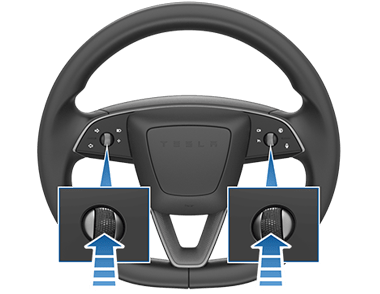
Press and hold both scroll wheels on the steering wheel. Hold them down simultaneously for about 10 seconds. The screen will turn black briefly. Release the buttons once the Tesla logo appears.
Waiting Period
Wait for the touchscreen to reboot fully. This may take up to one minute. Avoid pressing any buttons or touching the screen. Once the display returns, your reset is complete.
Read More: How to Reset Tesla Model Y Screen
Hard Reset Process
The hard reset process is a useful way to fix touchscreen problems on a Tesla Model 3. It helps restart the system without affecting your saved settings or data. This reset can clear minor bugs and glitches that cause the screen to freeze or become unresponsive.
Knowing how and when to perform a hard reset can save time and avoid unnecessary visits to the service center. The process is quick and easy to follow, making it accessible for all Tesla Model 3 owners.
When To Use Hard Reset
Use a hard reset if the touchscreen stops responding completely. Also, try it when the screen freezes or shows incorrect information. If some features do not work properly but the car still drives, a hard reset can help. Avoid using it for problems related to hardware damage or software updates.
Step-by-step Guide
First, put your Tesla in Park and keep your foot off the brake. Then, press and hold both scroll wheels on the steering wheel at the same time.
Keep holding the scroll wheels for about 10 seconds. The screen will turn black and then the Tesla logo will appear. Release the scroll wheels once the logo shows up.
Wait for the touchscreen to fully restart. This may take up to a minute. After the reset, check if the touchscreen works normally again.
Credit: service.tesla.com
Resetting Through Settings
Resetting your Tesla Model 3 touchscreen through the settings is a simple way to fix minor issues. This method does not affect your car’s data or preferences. It helps refresh the system and improve touchscreen response.
The process takes just a few steps. You navigate through the car’s menu to find reset options. This approach is safe and recommended for quick fixes.
Accessing The Menu
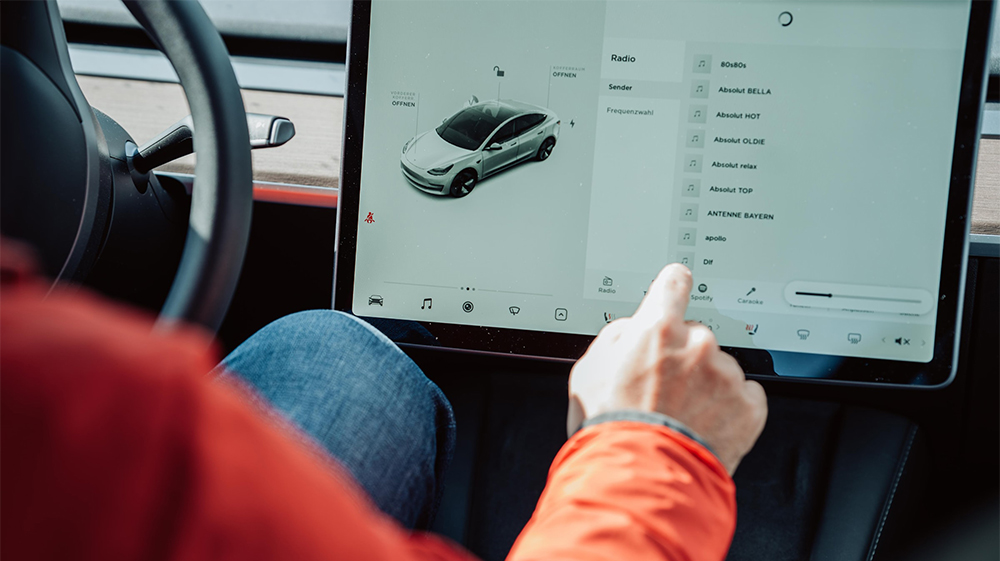
Start by tapping the car icon at the bottom of the screen. This opens the main control menu. Look for the “Safety & Security” tab on the left side. This section contains reset and reboot features.
Make sure the car is in park before proceeding. The touchscreen must be active and responsive to access these settings.
Reset Options Available
Inside “Safety & Security,” scroll down to find reset choices. You can choose to reboot the touchscreen or perform a full system reset. The reboot only restarts the display without affecting settings.
The full reset is more thorough and may take longer. It resets the software but keeps your saved data intact. Choose the option based on how severe the touchscreen issues are.
Read More: Best Tesla Model 3 Screen Protector Tempered Glass
After Reset Troubleshooting
After resetting the Tesla Model 3 touchscreen, some issues may still appear. Troubleshooting helps to fix these problems quickly. Follow simple steps to ensure your system works smoothly.
Check For Firmware Updates
Firmware updates improve touchscreen performance. They fix bugs and add new features. Open the car’s settings menu. Look for software update notifications. Download and install updates if available. Keep your Tesla’s system up to date.
Rebooting Other Systems
Sometimes, other systems need rebooting. Try restarting the car’s main computer. Hold the scroll wheels on the steering wheel. Wait for the screen to go black. Release the wheels and wait for reboot. This can solve many glitches after a reset.
Tips To Avoid Future Screen Issues
Keeping your Tesla Model 3 touchscreen working well is key to a smooth driving experience. Small steps can help avoid screen problems and keep the system running fast and error-free.
These tips focus on simple habits to protect your touchscreen and keep it responsive for years.
Regular Software Updates
Tesla often releases software updates for the Model 3. These updates fix bugs and improve touchscreen performance. Install updates as soon as they are available. Delaying updates can cause glitches or slow response times. Connect to a strong Wi-Fi signal before starting the update. This ensures the download completes without interruption.
Regular updates keep the touchscreen stable and less likely to freeze or crash.
Safe Usage Practices
Avoid pressing the touchscreen with sharp objects. Use your finger or a soft stylus instead. Keep the screen clean by wiping it with a soft cloth. Do not use harsh chemicals or abrasive materials. Protect the car from extreme temperatures, as heat or cold can affect screen sensitivity.
Avoid leaving the car in direct sunlight for long periods. This prevents overheating of the screen. Turn off unnecessary apps running on the screen. Too many apps can slow the system down or cause it to freeze.

Credit: www.youtube.com
Conclusion
Resetting your Tesla Model 3 touchscreen is simple and quick. It can fix many common issues without needing help. Just follow the steps carefully to avoid problems. Doing this refreshes the system and often improves performance. Keep your car’s software updated for best results.
Regular resets can keep your touchscreen running smoothly. Try this method before seeking professional support. It saves time and effort. Remember, a few easy actions can restore your Tesla’s display function. Stay calm and reset confidently.
FAQs Of How to Reset Tesla Model 3 Touchscreen
How Do I Reset The Tesla Model 3 Touchscreen?
To reset the Tesla Model 3 touchscreen, press and hold both scroll wheels on the steering wheel. Hold them until the screen turns black. The system will reboot automatically within a minute. This soft reset fixes most touchscreen glitches without affecting your settings.
When Should I Perform A Touchscreen Reset On Model 3?
Perform a touchscreen reset if the screen freezes or becomes unresponsive. It also helps when apps lag or display errors. Resetting is a quick fix before trying a full system reboot or contacting Tesla support. It doesn’t erase your data.
Will Resetting The Touchscreen Erase My Tesla Settings?
No, resetting the touchscreen on a Tesla Model 3 does not erase any settings. It only reboots the display system. Your preferences, saved locations, and software remain intact after the reset. It’s a safe troubleshooting step for minor touchscreen issues.
Can I Reset The Tesla Model 3 Touchscreen While Driving?
No, you should never reset the Tesla Model 3 touchscreen while driving. Performing a reset requires both hands on the steering wheel and causes the screen to go black temporarily. Always reset when the vehicle is safely parked to avoid distractions.
Disclosure: As an Amazon Associate, I may earn from qualifying purchases at no extra cost to you. Amazon and the Amazon logo are trademarks of Amazon.com, Inc, or its affiliates.
- Amazon, Amazon Prime, the Amazon logo and Amazon Prime logo are trademarks of Amazon. com, Inc. or its affiliates.

I am Sadman, the founder of CarSensorHub.com, where I share my passion for cars and technology. I specialize in writing detailed reviews and helpful guides on car gadgets, accessories, safety tools and many more. My mission is to help car owners discover the best products and tips to improve their driving experience and stay safe on the road.