Getting your Chevrolet Tahoe’s Wi-Fi hotspot up and running can change how you stay connected on the go. Imagine having fast internet access wherever you drive—whether for work, entertainment, or keeping your passengers happy.
If you’ve ever wondered how to set it up quickly and without hassle, you’re in the right place. This guide will walk you through every step, making sure you can enjoy seamless connectivity in no time. Keep reading to unlock the full potential of your Tahoe’s Wi-Fi hotspot.
Chevrolet Tahoe Wi-fi Basics
The Chevrolet Tahoe offers built-in Wi-Fi for passengers on the move. This feature helps keep devices connected during trips. Setting up the hotspot is simple and quick. Understanding the basics makes the process smoother.
Knowing the key features and the data plan needs is important. This ensures you get the best use from the Wi-Fi hotspot. Here are the main points to know about the Chevrolet Tahoe Wi-Fi.
Features Of The Hotspot
The Tahoe hotspot connects multiple devices at once. It uses 4G LTE for fast internet access. Passengers can stream music, browse websites, and use apps. The hotspot works within the vehicle’s range. It has a secure password to protect your connection. The system turns on automatically when the vehicle starts. You can control the hotspot through the vehicle’s touchscreen or app.
Data Plan Requirements
The hotspot needs a data plan to work. Chevrolet offers different plans based on usage. Choose a plan that fits your internet needs. Plans vary in data limits and monthly fees. Some plans allow unlimited data for heavy use. You can manage your plan and monitor usage online. No plan means the hotspot will not connect to the internet.

Credit: www.hansenmotors.com
Preparing Your Tahoe
Before setting up the Wi-Fi hotspot in your Chevrolet Tahoe, you need to prepare the vehicle properly. Preparation helps ensure a smooth and successful connection process. Taking some simple steps will save time and avoid frustration.
Start by verifying if your Tahoe supports the Wi-Fi hotspot feature. Then, check for any software updates that may improve the system’s performance. These checks are essential to enjoy a reliable internet connection inside your vehicle.
Checking Vehicle Compatibility
Not all Chevrolet Tahoe models have the Wi-Fi hotspot option. Find your vehicle’s model year and trim level. Consult the owner’s manual or visit Chevrolet’s official website. Look for details about built-in Wi-Fi capability. Make sure your Tahoe has the necessary hardware and subscription plan.
Ensuring Software Updates
Software updates keep your Tahoe’s infotainment system running smoothly. Connect your vehicle to a stable Wi-Fi network or use a USB drive. Follow the instructions in the vehicle’s settings menu to check for updates. Installing the latest software enhances hotspot performance and security.
Activating The Hotspot
Activating the Chevrolet Tahoe Wi-Fi hotspot is easy and quick. This feature lets you connect your devices to the internet while on the road. Follow these simple steps to turn on the hotspot and enjoy seamless connectivity during your drive.
Accessing The Infotainment System
Start by turning on your Tahoe’s engine. The infotainment system screen will light up. Tap the “Menu” button on the screen or the console. Look for the “Settings” option and select it. From there, find the “Connectivity” or “Wi-Fi” section. This is where you will manage the hotspot settings.
Enabling The Hotspot Feature
Inside the Wi-Fi menu, locate the option labeled “Wi-Fi Hotspot.” Tap to open it. Switch the hotspot to “On” by pressing the toggle button. The system may ask for your account details or require activation through your service provider. Enter the needed information carefully. After activation, your Tahoe will broadcast a Wi-Fi signal. Use the network name and password shown to connect your devices.
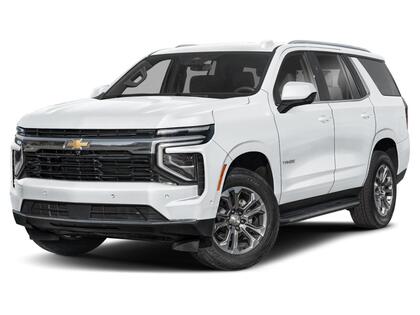
Credit: www.georgianchevrolet.com
Connecting Devices
Connecting your devices to the Chevrolet Tahoe Wi-Fi hotspot is simple and quick. This feature lets you enjoy internet access on the go. Follow these steps to get online without trouble.
Finding The Network Name
Start by turning on the Wi-Fi on your device. Look for the network list. Find the Chevrolet Tahoe hotspot name. It usually starts with “Chevy” or “Tahoe.” If unsure, check your vehicle’s touchscreen. The network name shows in the Wi-Fi settings menu. Make sure you select the correct network to connect.
Entering The Password
After selecting the network, enter the password. The password is case-sensitive. You can find it on the vehicle’s touchscreen under the hotspot settings. Type it carefully to avoid errors. Once entered, your device will connect automatically. Enjoy browsing, streaming, or working online in your Tahoe.
Managing Your Hotspot
Managing your Chevrolet Tahoe Wi-Fi hotspot helps keep your connection safe and efficient. You control who connects and how much data is used. This section guides you through important steps to manage your hotspot easily.
Adjusting Settings
Access your Tahoe’s infotainment system to change hotspot settings. You can rename your network name (SSID) for easy recognition. Set a strong password to keep your connection secure. Choose the number of devices allowed to connect at once. Turn the hotspot on or off depending on your needs. Adjusting these settings helps protect your data and improve your internet speed.
Monitoring Data Usage
Keep track of how much data your hotspot uses each month. Your Tahoe’s system shows real-time data usage on the screen. Watching data prevents unexpected charges from your service provider. Set alerts to notify you when data reaches a certain limit. Monitoring data ensures you stay within your plan and avoid extra fees.
Troubleshooting Tips
Setting up the Chevrolet Tahoe Wi-Fi hotspot can sometimes come with small issues. Troubleshooting helps fix these problems quickly. This section shares simple tips to solve common connection problems and reset the hotspot.
Common Connection Issues
Sometimes the Wi-Fi might not connect to your device. Check if the hotspot is turned on in the vehicle’s settings. Make sure your device’s Wi-Fi is also on and searching for networks. The signal may be weak if you are far from the Tahoe. Move closer to the vehicle to get a better signal.
Another issue is slow internet speed. This can happen if many devices use the hotspot at once. Disconnect some devices to improve speed. Network congestion or poor cellular service can also slow the connection.
Resetting The Hotspot
Resetting the hotspot can fix many problems. Turn off the vehicle and wait for a few minutes. Turn the vehicle back on and enable the hotspot again. This refreshes the system and clears minor bugs.
You can also reset the hotspot settings through the vehicle’s infotainment menu. Look for the Wi-Fi or hotspot settings and choose the reset option. After the reset, reconnect your devices using the password shown on the screen.
Maximizing Hotspot Performance
Getting the best from your Chevrolet Tahoe Wi-Fi hotspot needs some care. Simple steps can boost your connection speed and keep it safe. Strong Wi-Fi helps everyone enjoy internet in the car without interruptions.
Optimal Placement
Place your Tahoe hotspot in an open spot inside the vehicle. Avoid spots blocked by metal or thick seats. The front dashboard works well for signal strength. Keep the hotspot away from other electronics to reduce interference. Check signal bars often to find the best place.
Security Best Practices
Set a strong password for your Wi-Fi hotspot. Use letters, numbers, and symbols to keep it safe. Change the password regularly to protect your network. Turn off the hotspot when not in use to stop unwanted access. Keep your vehicle’s software updated to fix security issues.
Frequently Asked Questions
How Do I Activate Chevrolet Tahoe Wi-fi Hotspot?
To activate, go to your Tahoe’s infotainment settings. Select “Wi-Fi Hotspot” and follow on-screen prompts. You’ll need a subscription plan to enable the hotspot service.
What Devices Can Connect To Tahoe Wi-fi Hotspot?
Most Wi-Fi-enabled devices like smartphones, tablets, and laptops can connect. The Tahoe hotspot supports multiple simultaneous connections, ideal for passengers on the go.
How To Improve Chevy Tahoe Wi-fi Hotspot Speed?
Position your vehicle in an area with strong cellular signal. Avoid obstructions like tall buildings or tunnels. Using a data plan with higher speed limits also helps.
Is There A Data Limit On Tahoe Wi-fi Hotspot?
Yes, data limits depend on your subscription plan. Check your provider’s terms for monthly data caps to avoid extra charges or throttled speeds.
Conclusion
Setting up the Chevrolet Tahoe Wi-Fi hotspot is simple and quick. Just follow the steps carefully, and you will stay connected on the go. This feature helps you enjoy internet access anywhere your vehicle goes. You can share the connection with friends or family easily.
Keep your Tahoe’s system updated to avoid any issues. Stay connected and make your drives more enjoyable with this handy tool.
Disclosure: As an Amazon Associate, I may earn from qualifying purchases at no extra cost to you. Amazon and the Amazon logo are trademarks of Amazon.com, Inc, or its affiliates.
- Amazon, Amazon Prime, the Amazon logo and Amazon Prime logo are trademarks of Amazon. com, Inc. or its affiliates.

I am Sadman, the founder of CarSensorHub.com, where I share my passion for cars and technology. I specialize in writing detailed reviews and helpful guides on car gadgets, accessories, safety tools and many more. My mission is to help car owners discover the best products and tips to improve their driving experience and stay safe on the road.


