Are you ready to make your drive smoother and more connected? Using Chevrolet Tahoe Wireless CarPlay can transform how you interact with your phone while on the road.
Imagine accessing your favorite apps, music, and navigation without fumbling for cables or taking your eyes off the road. In this guide, you’ll learn exactly how to set up and use Wireless CarPlay in your Tahoe, so you can enjoy a safer, hands-free driving experience.
Keep reading to unlock the full potential of your vehicle’s technology.

Credit: www.ebay.com
Chevrolet Tahoe Wireless Carplay Features
The Chevrolet Tahoe offers Wireless CarPlay to enhance your driving experience. This feature connects your iPhone to the vehicle without cables. It provides easy access to apps, maps, music, and calls. Using Wireless CarPlay keeps your focus on the road while staying connected.
Benefits Of Wireless Carplay
Wireless CarPlay removes the need for charging cables. It lets you control your phone with voice commands or the Tahoe’s touchscreen. You can access navigation apps for clear directions. Music streaming is simple and hands-free. Calls and messages can be managed safely while driving. This feature reduces distractions and keeps your drive smooth.
Compatibility With Tahoe Models
Wireless CarPlay is available in newer Chevrolet Tahoe models. Check your vehicle’s model year and infotainment system to confirm support. Most Tahoes from 2021 onward include this feature. The system works with iPhones running iOS 9 or later. Make sure your phone’s Bluetooth and Wi-Fi are turned on to connect.
Preparing Your Iphone For Wireless Carplay
Preparing your iPhone for Wireless CarPlay is an important step before connecting to your Chevrolet Tahoe. Your phone must meet specific requirements and have the right settings activated. This ensures a smooth and quick connection every time you get in your car.
Follow these simple steps to prepare your iPhone. It will help you enjoy Wireless CarPlay without any issues.
Required Ios Version
Your iPhone needs iOS 9 or later to support Wireless CarPlay. Most newer iPhones already have this version or higher. Check your phone’s software version in Settings under General and Software Update. If your iPhone is not updated, download the latest iOS before trying to connect.
Enabling Bluetooth And Wi-fi
Wireless CarPlay uses both Bluetooth and Wi-Fi to connect. Turn on Bluetooth by opening Settings and selecting Bluetooth. Make sure the toggle is green. Then, open Settings again and tap Wi-Fi. Turn Wi-Fi on and connect to a network if needed. Both Bluetooth and Wi-Fi must be active for CarPlay to work wirelessly.
Connecting Chevrolet Tahoe To Wireless Carplay
Connecting your Chevrolet Tahoe to Wireless CarPlay lets you use your iPhone safely while driving. It offers a smart way to access maps, music, and messages without cables. The setup takes just a few steps to get started.
Follow clear instructions to pair your iPhone and Tahoe for a smooth experience. Troubleshooting tips help fix common problems quickly. Enjoy hands-free control and stay focused on the road.
Initial Pairing Steps
Start by turning on your Tahoe’s infotainment system. Go to the CarPlay or Bluetooth menu in the settings. On your iPhone, open Settings and tap Bluetooth to turn it on.
Find your Tahoe in the list of available devices on your iPhone. Tap it to begin pairing. A code may appear on both screens; confirm they match to connect. After pairing, CarPlay will launch automatically.
Troubleshooting Connection Issues
Check that Bluetooth and Wi-Fi are enabled on your iPhone. Restart both your Tahoe’s system and your iPhone if connection fails. Make sure your iPhone runs the latest iOS version.
Forget the Tahoe device in your iPhone’s Bluetooth settings and try pairing again. Move closer to the Tahoe to avoid signal problems. If issues persist, consult your vehicle’s manual for more help.
Credit: www.ebay.com
Using Carplay On Chevrolet Tahoe
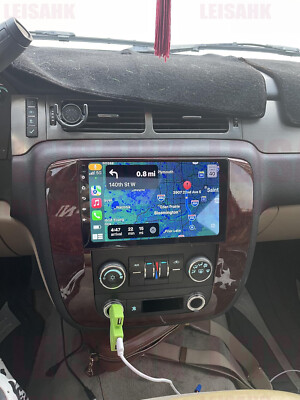
Using CarPlay on the Chevrolet Tahoe makes driving safer and more fun. It connects your iPhone to the car’s screen without wires. This lets you use apps, make calls, and listen to music easily. The system is designed to keep your focus on the road.
Navigating The Interface
The CarPlay interface is simple and clear. Icons are large and easy to tap. Swipe left or right to see more apps. The home button takes you back to the main screen. Voice control is always ready with a long press of the voice command button. This helps you keep your eyes on the road.
Accessing Apps And Features
CarPlay shows apps that work well in the car. Use Maps for directions and traffic updates. Make calls or send messages without typing. Play music, podcasts, or audiobooks with a tap. Some third-party apps also work smoothly. All features are designed for quick and easy use while driving.
Driving an Older Tahoe?
If your Tahoe doesn’t support Wireless CarPlay natively, you don’t have to miss out. Get the 2026 tech experience in your 2015-2020 Tahoe today!
Get the Wireless Upgrade Kit Now →Optimizing Your Wireless Carplay Experience
Optimizing your wireless CarPlay experience in the Chevrolet Tahoe helps you enjoy smooth and easy use. Small changes in settings can make a big difference in how well CarPlay works. Control what you see and hear while driving. Keep distractions low and focus on the road. This section shows simple steps to improve your wireless CarPlay.
Adjusting Settings For Better Performance
Start by checking your Bluetooth and Wi-Fi connections. Strong signals keep CarPlay fast and stable. Turn off other devices that use Wi-Fi to avoid interference. Lower screen brightness on your Tahoe to save power. Use the settings menu in CarPlay to choose apps you want to see. Remove apps you do not use. This keeps the screen clean and easy to read. Update your Tahoe’s software regularly. Updates fix bugs and improve CarPlay speed.
Managing Notifications And Permissions
Control which notifications appear on your CarPlay screen. Turn off alerts from apps that distract you. Allow only important messages like calls and navigation. Check app permissions in your iPhone settings. Block apps from accessing your location or microphone if not needed. This keeps your privacy safe and avoids unwanted interruptions. Manage notifications to keep your drive calm and focused.
Common Wireless Carplay Problems In Tahoe
Using Wireless CarPlay in your Chevrolet Tahoe is convenient. Yet, some common problems may affect your experience. Knowing these issues helps you fix them fast and enjoy seamless connectivity.
Connection Drops
Connection drops often disrupt Wireless CarPlay use in the Tahoe. This happens when the Bluetooth or Wi-Fi signal weakens. Moving too far from the vehicle or interference from other devices causes this. Restarting your phone or the Tahoe’s system can help restore the connection. Keeping your phone software updated reduces dropouts. Also, avoid using multiple Bluetooth devices at once.
Audio And Display Issues
Audio and display problems appear during wireless CarPlay sessions. Sometimes, sound delays or no sound occur. Screen freezing or flickering might also happen. These issues often come from outdated apps or software. Restarting the infotainment system usually solves the problem. Check your phone volume and mute settings too. Clear any dirt from the screen to improve display response.

Credit: www.amazon.com
Frequently Asked Questions
How Do I Connect Chevrolet Tahoe To Wireless Carplay?
To connect, enable Bluetooth and Wi-Fi on your iPhone. Then, pair your phone via Chevrolet’s infotainment system. Follow on-screen prompts to complete wireless CarPlay setup quickly and easily.
What Models Support Wireless Carplay In Chevrolet Tahoe?
Wireless CarPlay is available on Chevrolet Tahoe models from 2021 onwards. Check your vehicle’s infotainment system for compatibility and software updates to ensure smooth wireless connection.
Can I Use Wireless Carplay Without Cables In Tahoe?
Yes, Wireless CarPlay works without any cables. Once paired, your iPhone connects automatically via Wi-Fi and Bluetooth, allowing hands-free access to apps and navigation on the Tahoe’s display.
How To Troubleshoot Wireless Carplay Connection Issues?
Restart your iPhone and Tahoe’s infotainment system. Ensure Bluetooth and Wi-Fi are on. Forget and re-pair your device if problems persist. Updating iOS and vehicle software can also help resolve issues.
Conclusion
Using Chevrolet Tahoe Wireless CarPlay makes driving easier and safer. Connect your phone without cables and enjoy hands-free control. Access music, maps, and calls right on your dashboard. The setup is quick and user-friendly, even for beginners. This feature helps you stay focused on the road.
Enjoy a smoother, more connected drive every time. Give it a try and see the difference yourself. Simple steps lead to better driving experiences.
Disclosure: As an Amazon Associate, I may earn from qualifying purchases at no extra cost to you. Amazon and the Amazon logo are trademarks of Amazon.com, Inc, or its affiliates.
- Amazon, Amazon Prime, the Amazon logo and Amazon Prime logo are trademarks of Amazon. com, Inc. or its affiliates.

I am Sadman, the founder of CarSensorHub.com, where I share my passion for cars and technology. I specialize in writing detailed reviews and helpful guides on car gadgets, accessories, safety tools and many more. My mission is to help car owners discover the best products and tips to improve their driving experience and stay safe on the road.


