Is your Chevrolet Tahoe’s infotainment system running slow or missing the latest features? Keeping your system updated can make a big difference in how smoothly it works and how much you enjoy your drive.
But if you’re not sure how to update it, don’t worry — you’re in the right place. This guide will walk you through simple steps to update your Tahoe’s infotainment system quickly and easily. By the end, you’ll have the latest software ready, so your ride feels fresh and connected every time you hit the road.
Let’s get started!
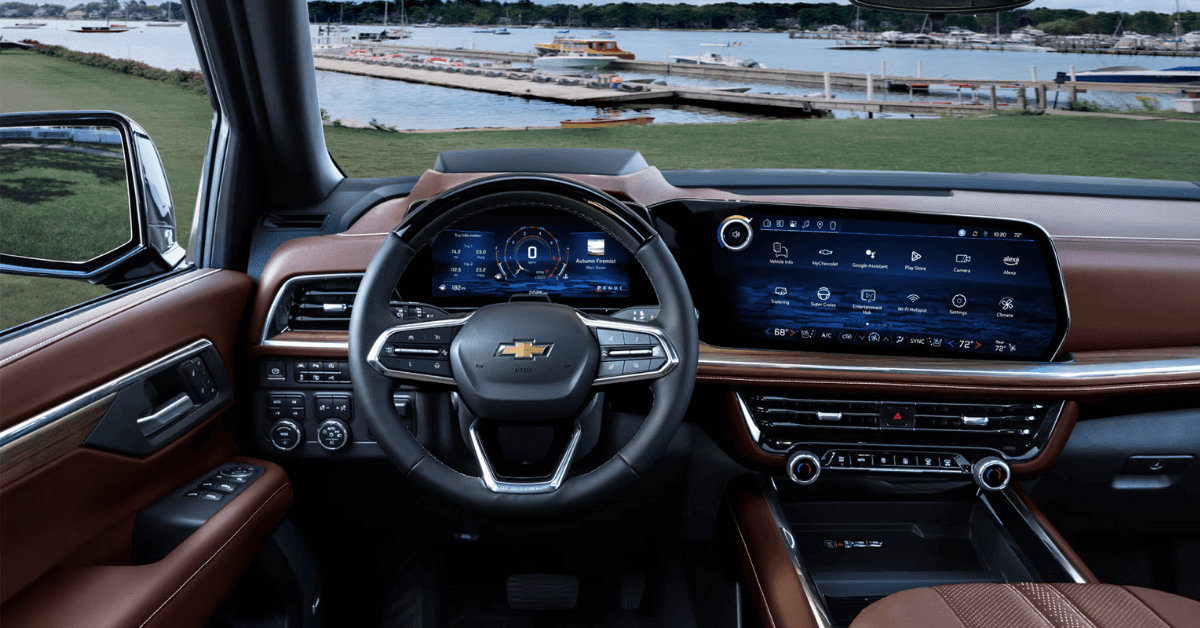
Credit: www.applegatechev.com
Prepare For The Update
Preparing your Chevrolet Tahoe for an infotainment system update is key. Taking a few simple steps ensures the process goes smoothly. These steps save time and avoid errors during the update.
Follow clear instructions. Be ready before starting the update. This helps keep your system safe and working properly.
Check Current Software Version
First, find out the software version on your Tahoe’s infotainment system. Go to the settings menu and select “System Information.” The version number shows here. Knowing this helps you decide if an update is needed.
Gather Required Tools
Get all tools before starting. Usually, you need a USB drive with enough space. Make sure it is formatted to FAT32. Also, have your vehicle’s manual nearby. Some updates may require a stable internet connection.
Ensure Vehicle Is Parked And Powered
Park your Tahoe in a safe, flat place. Keep the engine running or the ignition on. This prevents power loss during the update. Avoid turning off the vehicle until the update finishes completely.

Credit: www.bowmanchevy.com
Download The Update
Downloading the update for your Chevrolet Tahoe infotainment system is a simple process. It ensures your system works smoothly and has the latest features. Follow these steps carefully to get the update ready for installation.
Visit Chevrolet Official Website
Start by opening a web browser on your computer. Type in the official Chevrolet website address. This site offers all the necessary files for your vehicle’s infotainment system. Navigate to the support or owner’s section to find software updates.
Create Or Access Mychevrolet Account
Next, sign in to your MyChevrolet account. New users must create an account with basic personal and vehicle information. This account helps manage your vehicle updates and keeps track of your Tahoe’s details. Logging in gives access to personalized updates.
Locate Tahoe Infotainment Update
After signing in, search for the infotainment system update for the Tahoe model. The website lists available updates based on your vehicle’s year and system version. Download the correct update file to your computer. Save it in an easy-to-find folder for the next step.
Transfer Update To Usb
Transferring the update to a USB drive is a key step in updating your Chevrolet Tahoe infotainment system. This process allows your vehicle to receive the latest software improvements. Follow the steps carefully to ensure a smooth update.
Format Usb Drive Correctly
Start by formatting your USB drive. Use a computer to format it as FAT32 or exFAT. This ensures the system can read the drive. Avoid using drives larger than 32GB for best results. Remove all files from the USB before formatting. This prevents conflicts during the update.
Download Files To Usb
Download the update files from Chevrolet’s official site. Save the files directly to the root folder of the USB drive. Do not place files inside any folder. This helps the infotainment system locate the update quickly. Wait for the download to finish before ejecting the USB safely.
Verify File Integrity
Check the downloaded files for errors. Compare the file size with the information on the download page. Some sites provide checksums; use these to confirm file accuracy. This step avoids corrupted updates that can cause issues. Only use files that match perfectly before proceeding.
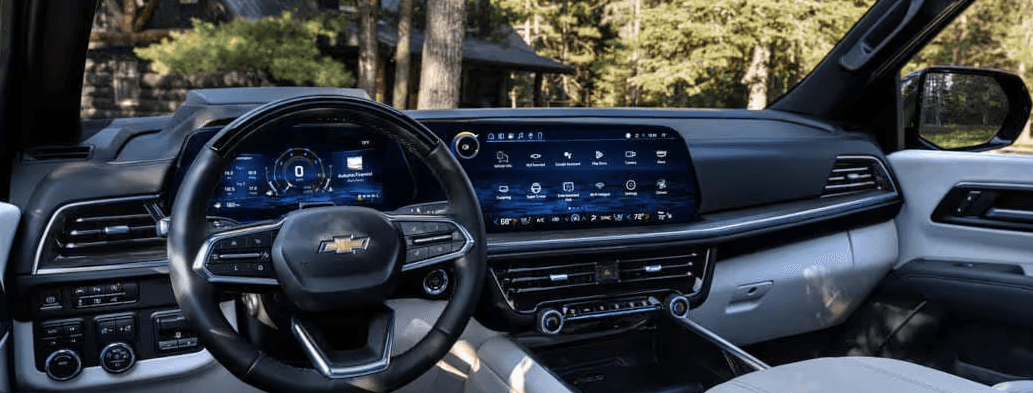
Credit: www.timmoranchevy.com
Install Update In Vehicle
Installing the update directly in your Chevrolet Tahoe is simple and fast. The system uses a USB drive to load new software. Make sure your USB is ready with the update file. The process happens inside your vehicle through the infotainment screen.
Follow these steps carefully. This ensures the update installs without errors. Keep your vehicle on and do not turn off the engine during the update.
Insert Usb Into Tahoe
Locate the USB port in your Tahoe. It is usually near the dashboard or center console. Plug your USB drive with the update file into the port. The system will detect the USB automatically. Wait a moment for the infotainment to recognize the update.
Follow On-screen Prompts
Your Tahoe’s screen will show update instructions. Read each message carefully. Touch the screen buttons to confirm the update. Avoid pressing other controls during the process. The system may ask you to agree to terms. Confirm to continue. The update will begin soon after confirmation.
Wait For Installation Completion
The update process takes several minutes. Do not remove the USB during this time. The screen may go blank or restart. This is normal. Wait until the system shows a message that says the update is complete. After that, safely remove the USB. Your Tahoe’s infotainment system is now up to date.
Troubleshooting Tips
Updating your Chevrolet Tahoe infotainment system should be simple. Sometimes, issues arise during or after the update. These troubleshooting tips help you fix common problems quickly. Follow these steps to get your system working smoothly again.
Common Installation Errors
Installation errors can stop the update from finishing. Make sure your USB drive is formatted to FAT32. The update file must be in the root folder of the drive. Avoid interrupting the update process once it starts. Check the vehicle’s battery is fully charged or the engine is running. These steps reduce the chance of errors.
Resetting The Infotainment System
If the system freezes or acts slow after updating, try a reset. Hold the power button and the home button together for about 10 seconds. The screen will go black and then restart. This resets the system without erasing your settings or data. A reset often clears minor glitches caused by updates.
When To Visit A Dealer
Some problems need professional help. Visit a dealer if your infotainment system won’t start after several attempts. If the update keeps failing or the system crashes regularly, get expert support. Dealers have tools to diagnose and fix complex issues safely. They can also install updates if needed.
Maintain System Performance
Maintaining the performance of your Chevrolet Tahoe infotainment system helps it run smoothly. Regular care keeps the system responsive and reduces errors. It also ensures you get the latest features and security fixes. Follow simple steps to keep your system in top shape.
Regular Update Checks
Check for system updates often. Updates fix bugs and improve functions. Use the vehicle’s settings menu to find update options. Connect to Wi-Fi or use a USB drive for downloads. Install updates as soon as possible to avoid issues.
Backup Important Settings
Save your preferences before updating. Backup radio stations, navigation favorites, and personal settings. Use a USB stick or cloud service if available. This prevents loss of data during updates. It also helps restore your settings quickly after updates.
Safe Usage Practices
Use the infotainment system carefully. Avoid pressing too many buttons at once. Do not turn off the car or system during updates. Keep the screen clean and free from scratches. Protect the system from extreme temperatures to avoid damage.
Frequently Asked Questions
How Do I Check My Chevrolet Tahoe Infotainment Version?
Go to the Settings menu on your infotainment screen. Select System Information to view the current software version. This helps determine if an update is needed.
What Are The Steps To Update Tahoe Infotainment?
Connect a USB drive to your Tahoe. Download the update from Chevrolet’s official site. Insert the USB and follow on-screen instructions to install.
Can I Update Tahoe Infotainment Wirelessly?
Yes, newer Tahoe models support wireless updates. Connect your vehicle to Wi-Fi and navigate to the update section in Settings. Follow prompts to download and install.
How Often Should I Update My Tahoe System?
Check for updates every few months. Regular updates improve performance, add features, and fix bugs. Staying updated ensures optimal system functionality.
Final Thoughts
Updating your Chevrolet Tahoe infotainment system keeps it running smoothly. It helps fix bugs and adds new features. Always check for updates regularly to stay current. Follow the steps carefully to avoid problems. A simple update can improve your driving experience.
Stay safe and enjoy the benefits of a fresh system. Keep your Tahoe’s tech ready for every trip. Easy updates mean less hassle and more fun.
Disclosure: As an Amazon Associate, I may earn from qualifying purchases at no extra cost to you. Amazon and the Amazon logo are trademarks of Amazon.com, Inc, or its affiliates.
- Amazon, Amazon Prime, the Amazon logo and Amazon Prime logo are trademarks of Amazon. com, Inc. or its affiliates.

I am Sadman, the founder of CarSensorHub.com, where I share my passion for cars and technology. I specialize in writing detailed reviews and helpful guides on car gadgets, accessories, safety tools and many more. My mission is to help car owners discover the best products and tips to improve their driving experience and stay safe on the road.


