Imagine cruising down the highway in your Ford F-150, with everything at your fingertips – navigation, music, and hands-free calls. But what if your Sync system starts to lag or misses out on the latest features?
It can be frustrating, right? You deserve a seamless driving experience, and updating your Sync system is the key to making that happen. You’ll discover how easy it is to keep your Sync system up-to-date, ensuring your drive remains smooth and connected.
With clear, step-by-step instructions, you can transform your driving experience and make the most out of your Ford F-150. Ready to unlock the full potential of your ride? Let’s dive in.
🔄 Frustrated With Ford SYNC Update Fails?
Glitchy screens, slow software, or failed updates can ruin your driving experience. The right accessories can make updating SYNC fast and smooth!
Avoid update errors with reliable USB drives, high-speed cables, and trusted chargers. These must-have tools are proven to support flawless SYNC software upgrades for F-150 owners.
- ✅ Lightning-fast USB-C & Lightning cables
- ✅ Strong Bluetooth receivers with auto-connect
- ✅ Noise-free AUX adapters for crystal-clear audio
🚘 Smart Sync Accessories on Amazon:
👉 View on Amazon & Buy Now
Fast charging + seamless SYNC pairing with Ford systems.
💡 Pro Tip: Always use high-quality, SYNC-compatible accessories to avoid pairing delays and dropped calls.
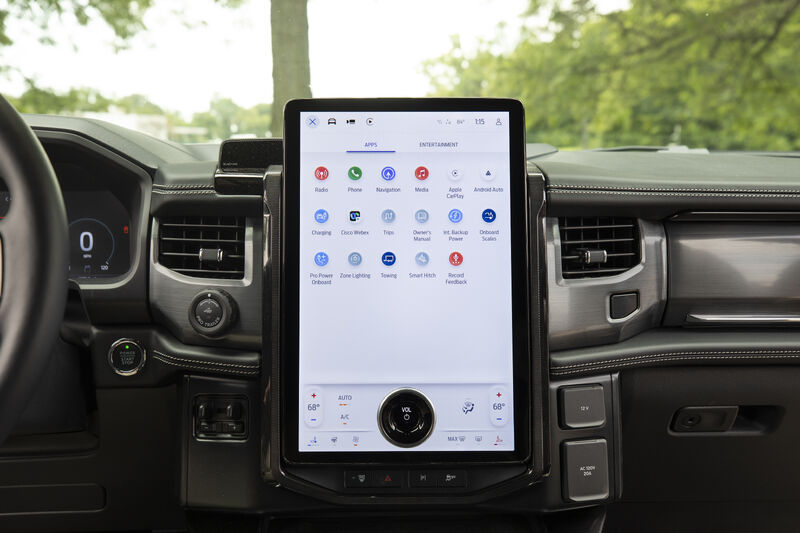
Credit: www.haldemandirect.com
Preparation Steps
Updating the Sync system on your Ford F-150 can enhance your driving experience. Ensuring everything runs smoothly requires preparation. By following these steps, you can make the update process easier. This section will guide you through what you need before starting the update.
Gather Necessary Materials
Before updating, gather all required materials. Start with a USB flash drive. It should have at least 4GB of free space. Ensure the drive is empty and formatted to FAT32. Have your vehicle’s VIN handy. You will need it to check for updates on Ford’s official website. A stable internet connection is also essential. This will help you download the latest software update.
Check Software Compatibility
Ensure your current Sync version is compatible with the update. Visit Ford’s official site. Enter your VIN to find the latest compatible software. Sometimes, older Sync versions need a specific update path. Double-check to avoid errors during installation. Compatibility ensures the new software works without issues.
Read More: What is Fx4 Package on Ford F-150
Backing Up Data
Updating the Sync system on your Ford F-150 ensures smooth operation. First, connect your vehicle to a stable Wi-Fi network. Then, navigate to the settings menu and select “Software Updates” to start the process.
Backing up data on your Ford F-150 is crucial. It ensures you don’t lose valuable information. Before updating your Sync system, safeguard your contacts and navigation preferences. This will protect your data from potential loss during the update process. Let’s explore how to efficiently back up your important data.
Save Important Contacts
Your contacts hold essential information. Start by accessing the Sync system’s settings. Locate the contacts section. Choose the option to back up or export contacts. This creates a secure file of your contacts. Store this file on a USB drive or a computer. It’s a simple step, but it ensures your contacts remain intact after the update.
Backup Navigation Preferences
Your navigation preferences are vital for seamless travel. Access the Sync system’s navigation settings. Find the option to back up your preferences. Save this information in a secure location. This might be a USB drive or cloud storage. Keeping a backup means your favorite routes are safe. Restoring them later will be easy and hassle-free.
Downloading Update
Downloading the latest update for your Ford F-150’s Sync system can improve its performance. This process can give you access to new features and ensure compatibility with your devices. Follow these simple steps to download the update effortlessly.
Access Official Ford Website
Visit the official Ford website to start the update process. Look for the Sync system section. This is where you will find the update files. Make sure your internet connection is stable.
Navigate to the Sync updates page. Check if you are on the correct page for your Ford F-150. Look for any instructions or guides provided by Ford.
Choose Correct Version
Identify the correct version of the Sync update for your model. This step is crucial to ensure compatibility. Enter your vehicle’s identification number if required.
Verify the version number matches your current Sync system. Download only the file that suits your vehicle model. Double-check the file details before proceeding.
Installing Update
Updating the Sync system on your Ford F-150 is essential. It ensures optimal performance and access to the latest features. Installing the update involves a few straightforward steps. This guide will help you through the process. Make sure you have everything ready before starting. A USB drive is necessary for the update.
Connect Usb Drive
Start by inserting the USB drive into your computer. Download the update files from the official Ford website. Save these files to the USB drive. Ensure the files are not in a folder. The system will not recognize them if they are. Once the files are ready, remove the USB drive safely. Insert the USB drive into the Ford F-150’s USB port. The vehicle should be in park mode. Ensure the engine is running during the update.
Follow On-screen Instructions
Once the USB drive is connected, the screen will display prompts. Follow these instructions to start the update. The process may take some time. Do not turn off the engine or remove the USB drive. Interruptions can cause issues with the update. The system will notify you once the update is complete. Remove the USB drive safely from the port. Check the Sync system to ensure the update was successful. Enjoy the new features and improved performance.
🔄 Frustrated With Ford SYNC Update Fails?
Glitchy screens, slow software, or failed updates can ruin your driving experience. The right accessories can make updating SYNC fast and smooth!
Avoid update errors with reliable USB drives, high-speed cables, and trusted chargers. These must-have tools are proven to support flawless SYNC software upgrades for F-150 owners.
- ✅ Lightning-fast USB-C & Lightning cables
- ✅ Strong Bluetooth receivers with auto-connect
- ✅ Noise-free AUX adapters for crystal-clear audio
🚘 Smart Sync Accessories on Amazon:
👉 View on Amazon & Buy Now
Fast charging + seamless SYNC pairing with Ford systems.
💡 Pro Tip: Always use high-quality, SYNC-compatible accessories to avoid pairing delays and dropped calls.
Verifying Installation
Updating the Sync system on your Ford F-150 is vital for a smooth driving experience. Once you’ve installed the update, verifying the installation ensures everything runs correctly. This step checks the new features and confirms the update’s success. It helps to avoid future issues and ensures your vehicle’s tech is reliable.
Check System Version
First, access the Sync system menu. Navigate to the ‘Settings’ option. Find the ‘System Information’ section. Check the current version displayed. Compare it with the latest version from Ford’s website. Ensure they match. If they don’t, repeat the installation process.
Test Features
Test the new features after verifying the system version. Start with voice commands. Ensure they respond accurately. Try making a call using Sync. Check navigation and music streaming. Confirm the system’s responsiveness and accuracy. If anything seems off, consider rechecking the update process.

Credit: www.4dtech.com
Troubleshooting Tips
Updating the Sync system on a Ford F-150 requires checking for software updates online. Ensure your vehicle is connected to Wi-Fi. Follow the on-screen instructions carefully to complete the update successfully.
When updating the Sync system on your Ford F-150, you might face issues. These troubleshooting tips can help you resolve common problems. Follow these guidelines to ensure a smooth update process.
Common Error Messages
Encountering error messages can be frustrating. “Installation Failed” is a frequent message. This often points to a corrupted download. Re-download the update file from Ford’s website. Ensure your USB drive is formatted to FAT32. Also, check if the USB contains only the update files. Another common error is “No USB Detected.” Ensure the USB port works correctly. Try connecting a different USB device. If it works, the issue lies with the USB drive. Consider using a new or different USB drive.
Contacting Support
Sometimes, troubleshooting on your own may not solve the issue. Ford’s customer support can assist you. Prepare your vehicle’s VIN before calling. The VIN helps the support team locate your vehicle details. Explain the problem clearly and mention any error messages. Ford’s support team can provide step-by-step guidance. They might also schedule a service appointment if needed. Remember, professional help ensures your Sync system functions properly.
Frequently Asked Questions
Can I Update My Ford Sync Myself?
Yes, you can update Ford Sync yourself. Download updates from the Ford website onto a USB drive. Then, plug it into your vehicle’s USB port and follow on-screen instructions. Ensure your vehicle is parked during the update. Check Ford’s website for detailed instructions and compatibility.
Does Ford Update Sync For Free?
Ford offers free SYNC updates for compatible vehicles. Visit their official website for instructions and eligibility. Always check your model’s compatibility to ensure a smooth update process. Keep your system up-to-date to enjoy enhanced features and improved performance.
How To Tell If Ford Sync Needs An Update?
Check Ford’s official website for Sync updates. Connect your vehicle to Wi-Fi and access Sync settings. Follow prompts to verify if updates are available. Regular updates improve performance and features. Ensure you have the latest version for optimal functionality.
Why Is My Ford Sync Not Updating?
Ford Sync may not update due to poor internet connection, outdated software, or insufficient storage. Check your Wi-Fi connection and ensure your vehicle is in an open area. Update your Sync software and free up storage space. Contact Ford support for further assistance if needed.
🔄 For a smoother update process, equip your truck with the Best USB Hub for Ford F-150 SYNC System and experience uninterrupted connectivity.
Last Thoughts
Updating your Ford F-150’s Sync system is straightforward. Follow the steps carefully. Ensure your internet connection is stable. Use a USB drive for file transfer. Always check for the latest updates. Keep your vehicle in park during the process. Restart the system to apply changes.
Regular updates enhance system performance. Troubleshooting tips are available if needed. Stay informed about new features. A well-functioning Sync system improves your driving experience. Maintain your Ford F-150’s tech effortlessly. Regular updates keep your system running smoothly. Enjoy the benefits of a seamless connection.
Disclosure: As an Amazon Associate, I may earn from qualifying purchases at no extra cost to you. Amazon and the Amazon logo are trademarks of Amazon.com, Inc, or its affiliates.
- Amazon, Amazon Prime, the Amazon logo and Amazon Prime logo are trademarks of Amazon. com, Inc. or its affiliates.

I am Sadman, the founder of CarSensorHub.com, where I share my passion for cars and technology. I specialize in writing detailed reviews and helpful guides on car gadgets, accessories, safety tools and many more. My mission is to help car owners discover the best products and tips to improve their driving experience and stay safe on the road.