The GMC Sierra 1500 is a popular pickup truck known for its power and comfort. But today’s drivers want more than strong engines and nice seats they want smart technology. The infotainment system in the Sierra 1500 is a big part of the driving experience. It gives you control over music, maps, smartphone apps, and vehicle settings, all from one screen. If you’re considering this truck or already own one, understanding its infotainment system is essential for getting the most out of your ride.
What Is The GMC Sierra 1500 Infotainment System?
The infotainment system is the central hub for entertainment, navigation, and connectivity inside the Sierra 1500. It combines a touchscreen interface with voice commands, physical buttons, and smartphone integration. This system is available in all Sierra 1500 trims, but features can vary depending on the model year and package.
You’ll find a 7-inch or 8-inch touchscreen, depending on the trim. The screen is bright and easy to use, even in sunlight. Most Sierra 1500 models come with Apple CarPlay and Android Auto, which let you connect your phone for hands-free calling, music, and apps.
Key Features Of The Sierra 1500 Infotainment System
Here’s a closer look at what you get:
- Touchscreen Display: The main control center. The larger 8-inch screen is standard in higher trims and offers crisp graphics and intuitive menus.
- Smartphone Integration: With Apple CarPlay and Android Auto, you can mirror your phone’s screen and use apps directly from the display.
- Bluetooth Connectivity: Make calls, stream music, and use voice commands without touching your phone.
- Navigation System: Available in higher trims. Provides real-time traffic, turn-by-turn directions, and points of interest.
- Voice Control: Activate features or search for music and contacts using your voice.
- USB Ports and Charging: Multiple ports for charging and connecting devices.
- Wi-Fi Hotspot: Built-in hotspot lets you connect devices to the internet while on the road.
- Audio Options: Choose between standard speakers or premium Bose audio (on select trims).
- Rear Camera Display: The screen doubles as a monitor for backup and surround cameras.
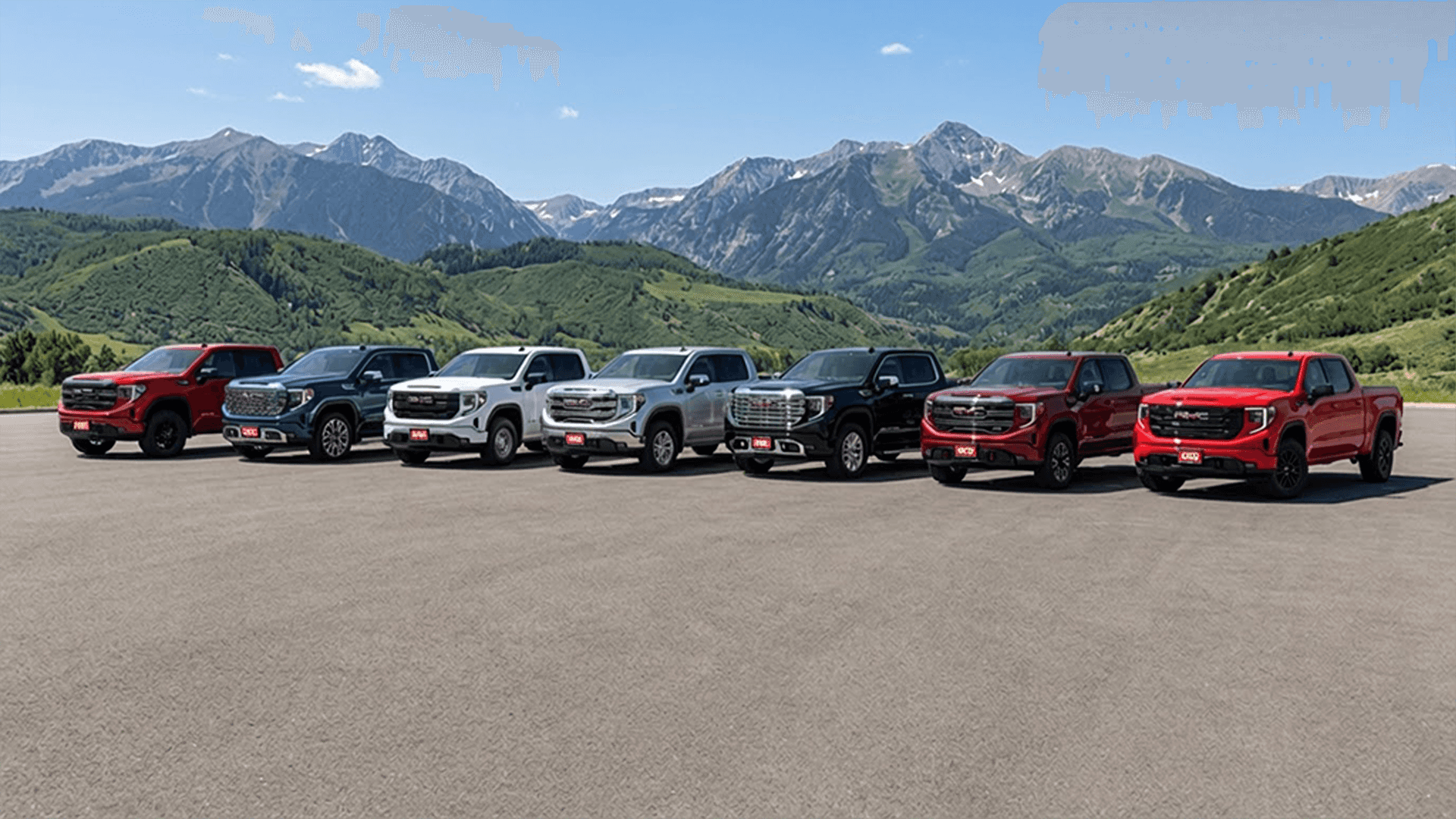
Credit: www.weldcountygarage.com
How To Use Basic Functions
The Sierra 1500’s infotainment system is designed to be easy for everyone. Here’s how to use the most common features:
Connecting Your Smartphone
- Plug your phone into a USB port.
- The screen will show options for Apple CarPlay or Android Auto.
- Tap your choice. Your phone’s main apps will appear on the screen.
- Use the touchscreen or voice commands to access music, maps, or messages.
Making Hands-free Calls
- Pair your phone with Bluetooth through the settings menu.
- Use the steering wheel button or touchscreen to select “Phone.”
- Choose a contact or dial the number.
- Speak to make the call; the system’s microphone picks up your voice.
Playing Music
- Select “Audio” from the menu.
- Choose the source—AM/FM radio, SiriusXM, Bluetooth, or USB.
- Use the touchscreen or steering wheel controls to change stations or tracks.
Using Navigation
If your Sierra 1500 has built-in navigation:
- Tap “Navigation.”
- Enter your destination using the keyboard or voice command.
- Follow the turn-by-turn directions shown on the screen and spoken aloud.
Adjusting Settings
You can customize many features:
- Tap “Settings.”
- Change audio preferences, display brightness, language, and more.
- Save your preferences for future drives.
Advanced Functions And Upgrades
The infotainment system offers more than basic controls. Some trims include advanced features:
Gmc Connected Services
With GMC Connected Services, you get:
- Remote access: Lock or unlock your truck, start the engine, or check fuel level from your smartphone.
- Vehicle diagnostics: Get alerts about maintenance needs or problems.
- Emergency assistance: Contact help in case of accidents or breakdowns.
Voice Recognition
The Sierra 1500’s voice system can do more than call contacts. You can:
- Set navigation destinations
- Adjust climate controls
- Search for nearby restaurants or gas stations
The system recognizes natural speech, so you don’t need special phrases.
Multi-view Cameras
Higher trims have multiple cameras for easier parking and towing. The display lets you switch views, including rear, side, and top-down.
Comparing Sierra 1500 Infotainment To Competitors
Here’s how the Sierra 1500’s system stacks up against other popular trucks:
| Truck Model | Touchscreen Size | Apple CarPlay/Android Auto | Navigation | Wi-Fi Hotspot |
|---|---|---|---|---|
| GMC Sierra 1500 | 7–8 inch | Standard | Available | Standard |
| Ford F-150 | 8–12 inch | Standard | Available | Standard |
| Chevrolet Silverado | 7–8 inch | Standard | Available | Standard |
| Ram 1500 | 8–12 inch | Standard | Available | Standard |
While Ford and Ram offer larger screens on some trims, GMC Sierra’s system is praised for its easy menus and reliable connectivity.
Common Problems And Solutions
Even the best systems can have issues. Here are some typical problems and how to fix them:
Frozen Screen
If the screen stops responding:
- Try restarting the truck.
- If that doesn’t help, check the owner’s manual for a reset option.
Bluetooth Not Connecting
- Make sure your phone’s Bluetooth is on and visible.
- Delete old connections and try pairing again.
Apple Carplay/android Auto Not Working
- Use a certified USB cable.
- Update your phone’s software.
- Restart the truck and try again.
Navigation Not Updating
- Check for map updates from GMC.
- Make sure your system’s software is up-to-date.
Customizing Your Infotainment Experience
Personalization helps you feel at home in your truck. Here are ways to customize:
- Home Screen Layout: Rearrange icons so your most-used apps are easy to reach.
- Audio Settings: Adjust bass, treble, and balance for your favorite sound.
- Driver Profiles: Save seat, mirror, and infotainment settings for each driver.
- Favorite Destinations: Store addresses for work, home, and frequent stops.
Practical Tips For Safe Use
Using the infotainment system safely is important. Here’s how:
- Set up your phone and preferences before driving.
- Use voice commands instead of touching the screen while driving.
- Keep eyes on the road—glance at the screen only when safe.
- Update your system regularly to avoid glitches.
Many accidents happen because drivers are distracted by screens. The Sierra 1500’s voice controls and steering wheel buttons help reduce this risk.
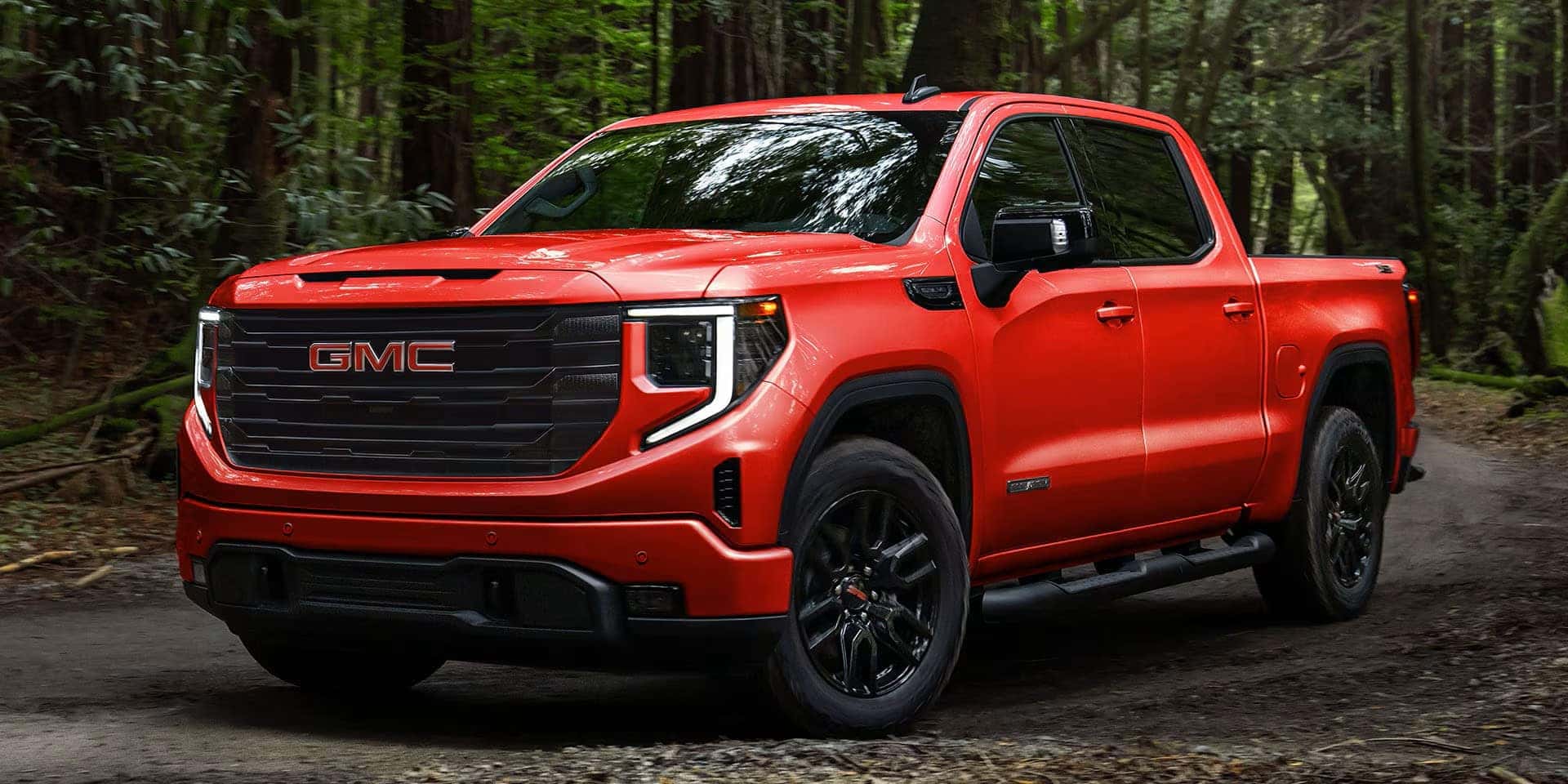
Credit: www.jimhudsongm.com
Data And Performance
The Sierra 1500 infotainment system is fast and reliable. Most drivers report:
- Quick startup times (under 5 seconds)
- Smooth transitions between menus
- Minimal lag with Apple CarPlay and Android Auto
Here’s a look at system speed compared to competitors:
| Truck Model | Startup Time | Menu Lag | Voice Command Response |
|---|---|---|---|
| GMC Sierra 1500 | 4.5 sec | Low | Fast |
| Ford F-150 | 5.1 sec | Medium | Medium |
| Ram 1500 | 4.9 sec | Low | Fast |
These numbers show the Sierra 1500 is among the fastest for response and reliability.
Upgrading And Maintaining Your Infotainment System
Technology changes fast. If you want to upgrade or keep your system current:
- Check for software updates from GMC, usually downloadable via Wi-Fi.
- Visit your dealer for hardware upgrades or repairs.
- Clean the touchscreen gently with a soft cloth—avoid strong cleaners.
Many drivers don’t realize software updates can fix bugs and add features. Set your system to auto-update if possible.
Infotainment System And Towing
The Sierra 1500 is often used for towing. The infotainment system helps with:
- Displaying trailer camera views
- Showing trailer brake settings
- Providing navigation routes for large vehicles
These tools make towing safer and easier, especially for beginners.
Non-obvious Insights For New Owners
- The system can remember up to 10 paired phones. This is helpful for families or work teams.
- You can set privacy settings for the Wi-Fi hotspot, limiting who can join.
- Most Sierra 1500 owners don’t realize the system can display maintenance alerts, such as oil life and tire pressure, right on the home screen.
Credit: www.demontrondbuickgmc.com
Frequently Asked Questions GMC Sierra 1500 Infotainment System Explained
How Do I Update The Sierra 1500 Infotainment System Software?
You can update your system through Wi-Fi. Go to “Settings,” then “System,” and check for updates. If you need help, your GMC dealer can assist.
Can I Add Navigation To A Sierra 1500 That Doesn’t Have It?
Navigation is built into certain trims. If your truck doesn’t have it, you may be able to add it with a dealer-installed upgrade. Otherwise, use Apple CarPlay or Android Auto with your phone’s maps.
Is The Wi-fi Hotspot Free?
The Sierra 1500 comes with a trial period for the Wi-Fi hotspot. After that, you need a data plan from your provider. Details are at Source Name.
How Do I Fix A Frozen Touchscreen?
Try restarting your truck. If the problem continues, look in your owner’s manual for a reset option or visit your dealer.
Does The Infotainment System Work With All Smartphones?
Yes, it supports most modern phones using Bluetooth, Apple CarPlay, and Android Auto. For best performance, use up-to-date devices and software.
The GMC Sierra 1500 infotainment system is full of useful features, easy to customize, and built for safety. Whether you’re streaming music, navigating city streets, or towing a trailer, this technology helps you stay connected and in control. With regular updates and smart use, your infotainment system will make every drive better.
Disclosure: As an Amazon Associate, I may earn from qualifying purchases at no extra cost to you. Amazon and the Amazon logo are trademarks of Amazon.com, Inc, or its affiliates.
- Amazon, Amazon Prime, the Amazon logo and Amazon Prime logo are trademarks of Amazon. com, Inc. or its affiliates.

I am Sadman, the founder of CarSensorHub.com, where I share my passion for cars and technology. I specialize in writing detailed reviews and helpful guides on car gadgets, accessories, safety tools and many more. My mission is to help car owners discover the best products and tips to improve their driving experience and stay safe on the road.